Choosing an IPTV app starts with one question: which device will you watch on? Each platform has its own app store, its own rules and its own selection of players. An app that is excellent on Android TV may not exist on a Samsung TV, and an iPhone favourite may have no Fire TV version.
This guide walks through each major platform, explaining where to find an IPTV app, how to install it safely and what to watch out for.
IPTV app basics
An IPTV app is a player: it connects to your IPTV service using the login details you receive, then shows channels, a programme guide and on-demand content. Apps do not include channels themselves. If you want to understand the features that separate one player from another, read our IPTV player guide.
Wherever possible, install apps from your device's official store. Official stores check apps for security problems and deliver updates automatically.
Device-by-device IPTV app guide
| Device | App store | What to know |
|---|---|---|
| Android TV / Google TV | Google Play Store | Widest choice of TV-focused players |
| Amazon Fire TV | Amazon Appstore | Some models use a different operating system with a different catalogue |
| Android phones and tablets | Google Play Store | Many players offer phone and tablet layouts |
| iPhone and iPad | Apple App Store | Players often share purchases with Apple TV |
| Apple TV | Apple App Store (tvOS) | No sideloading for ordinary users |
| Samsung TVs (Tizen) | Samsung's app store | Availability varies by model year and region |
| LG TVs (webOS) | LG Content Store | Similar limitations to Samsung |
| Windows | Microsoft Store or developer websites | Desktop players and general media players |
| Mac | Mac App Store or developer websites | Fewer options than Windows |
Android TV and Google TV
These platforms have the strongest selection of IPTV apps, including TV-first players such as TiviMate. Install from the Play Store, sign in, and use the remote's directional pad to navigate. See our guide to the TiviMate IPTV player.
Amazon Fire TV
Fire TV runs most Android TV-style players. Search the Amazon Appstore first. Our IPTV Firestick guide covers installation and setup step by step.
Android phones and tablets
Phone apps are handy for watching on the move and for checking a channel before switching to the TV. Use Wi-Fi when possible to avoid using mobile data quickly.
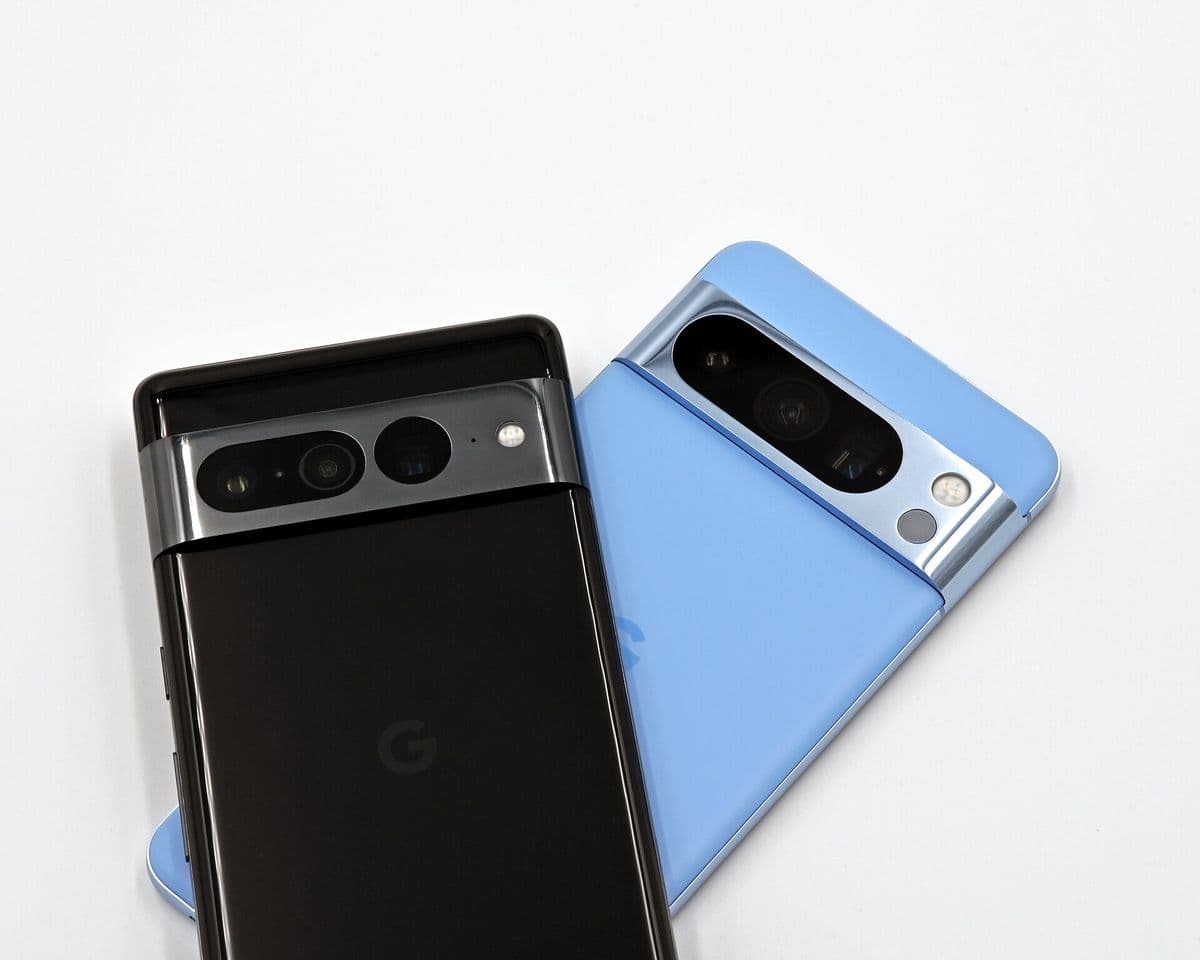
iPhone and iPad
The App Store has a range of players. Look for support for your provider's login type, EPG and, if you own an Apple TV, a tvOS version. Some apps share a single purchase across all three.
Samsung and LG smart TVs
Smart TV app stores have fewer IPTV players, and availability depends on the model year and region. Some apps link your playlist through the TV's MAC address on a website. Our guides to the Samsung IPTV app options and the Smart IPTV app explain how this works.
Windows and Mac
Computers can run desktop players, general media players such as VLC, and media centres such as Kodi. Our guide to the best IPTV player for Windows compares the options.
Installing an IPTV app safely
- Prefer official stores. They screen apps and provide updates.
- Check the developer. Look at the developer name, reviews and update history.
- Avoid apps that bundle channels. An app that promises free premium channels is a red flag for both security and legality.
- Be careful with sideloading. On Android-based devices you can install apps from outside the store, but only do it for apps from developers you trust, and turn off "unknown sources" afterwards.
- Read permissions. A player has no reason to access your contacts or messages.
Setting up your IPTV app
- Open the app and choose the login type: Xtream Codes API or M3U playlist.
- Enter the details exactly as your provider sent them, including
http://orhttps://and any port number. - Wait for the channels and EPG to load.
- Set favourites for the channels you watch most.
- Explore the settings for buffer size, guide refresh and parental controls.
Keeping your IPTV app up to date
Updates fix bugs, add codec support and close security holes. Turn on automatic updates in your device's store where possible. If an update causes a problem, check the developer's page for a fix before reinstalling, and keep a note of your login details so you can sign in again quickly.
When to use more than one IPTV app
Many households use different apps on different devices: a TV-focused player on the living-room box, a lighter app on phones, and VLC on a laptop for quick checks. As long as the number of devices streaming at the same time stays within your plan, this works well.
Using an IPTV app with Monster IPTV
Monster IPTV does not require its own app; it works with third-party players. Support will recommend an IPTV app for your device and send login details in the right format after activation. See the supported devices page for setup notes, or request the free trial to test an app first.
Frequently asked questions
Do I need a paid IPTV app?
Not necessarily. Many free apps work well. Paid upgrades can add useful features such as recording or multiple playlists, but they do not include any channels.
Why is my favourite IPTV app missing on my TV?
Each platform has its own store, and developers choose where to publish. Availability also varies by region and model. Your provider can suggest an alternative.
Is it safe to sideload an IPTV app?
It can be, if the app comes from a trusted developer. Apps from unknown sources carry security risks, so prefer official stores whenever possible.
Can I use one IPTV app on my phone and another on my TV?
Yes. Use whichever app suits each device, as long as the number of devices streaming at once stays within your plan.
What should I do if an IPTV app stops working after an update?
Restart the device, clear the app's cache, and check for a newer update. If it still fails, reinstall the app and re-enter your details.
Conclusion
The best IPTV app is the one that works smoothly on your specific device. Start from your platform's official store, check login and EPG support, install carefully, and test with a trial before you commit to a plan.