This IPTV player Windows guide helps you find the right app to turn a PC or laptop into a flexible second screen, or even your main TV if it is connected to a monitor or projector. Windows supports several kinds of player: dedicated IPTV apps, general-purpose media players such as VLC, and media centres such as Kodi. Each has strengths depending on how you watch.
This guide compares the main IPTV player Windows options, explains how to set each one up, and covers common problems.
Your main options on Windows
| Option | Best for | Programme guide | Effort to set up |
|---|---|---|---|
| Dedicated IPTV desktop apps | Everyday viewing with a TV-style layout | Usually yes | Low |
| VLC media player | Quick checks and simple playlists | No full guide | Very low |
| Kodi with PVR IPTV Simple Client | A full media centre on a PC connected to a TV | Yes | Medium |
Dedicated IPTV desktop apps
Several IPTV players offer Windows versions, either through the Microsoft Store or from the developer's website. IPTV Smarters, for example, has offered desktop versions alongside its mobile and TV apps; see our IPTV Smarters Pro guide. These apps usually support Xtream Codes logins and M3U playlists, load the EPG and organise live TV, films and series into separate sections.
Setup
- Download the app from the Microsoft Store or the developer's official website only.
- Open it and choose the login type: Xtream Codes API or M3U playlist.
- Enter your details exactly as provided.
- Let the app load channels and the guide.
Be cautious of download sites that bundle installers with extra software. If Windows SmartScreen warns about an unknown publisher, stop and check you have the official file.
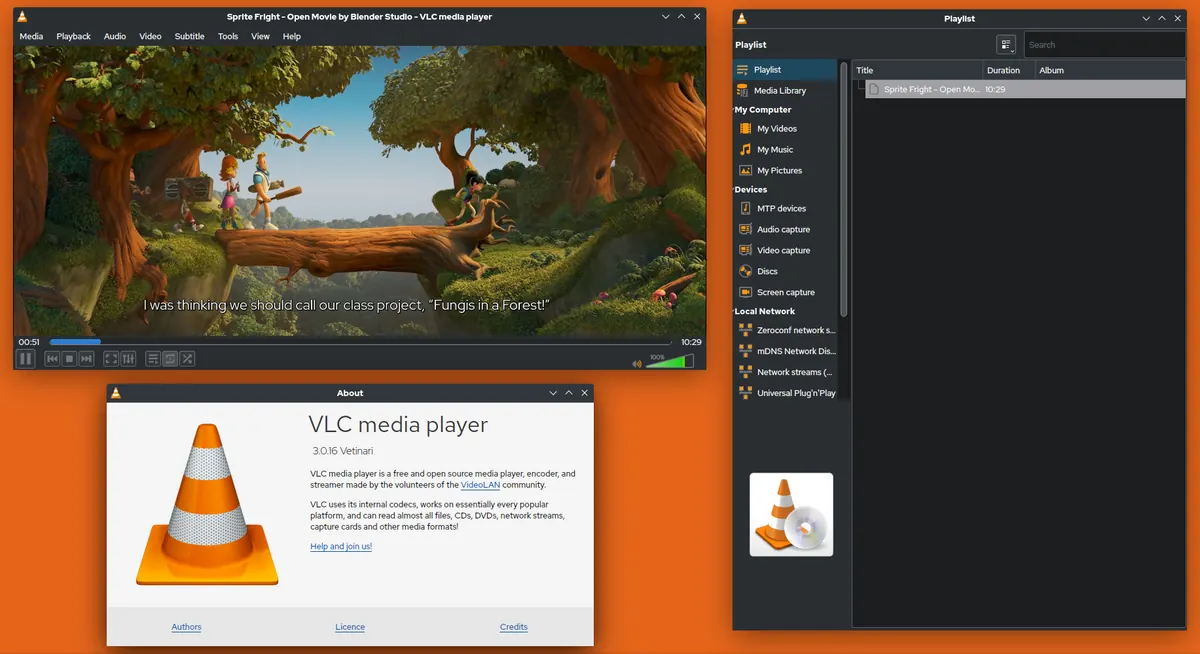
VLC media player
VLC is free, open-source and plays almost anything. It can open an M3U playlist link directly:
- Open VLC and choose Media, then Open Network Stream.
- Paste your M3U playlist link and press Play.
- Open the playlist view to browse channels.
VLC is ideal for checking whether a stream works or for occasional viewing. It does not offer a proper programme guide or remote-friendly navigation, so it is less suited to daily use.
Kodi with PVR IPTV Simple Client
Kodi is a free media centre with a full-screen interface designed for TVs. With the PVR IPTV Simple Client add-on, it can load an M3U playlist and an XMLTV guide, giving you a TV-style experience on a PC connected to a big screen. Our guide to Kodi Simple IPTV explains setup step by step.
Only install add-ons from Kodi's official repository; third-party add-ons that promise free channels carry security and legal risks.
Choosing the right IPTV player for Windows
- You want a simple, TV-like app: a dedicated IPTV desktop player.
- You only need to test a link or watch occasionally: VLC.
- Your PC is connected to a TV and you want a full media centre: Kodi.
- You also watch on other devices: consider a player that has versions for your phone and TV too, so the experience is familiar everywhere.
Watching on a TV from your PC
A laptop or mini PC connected to a TV by HDMI makes a capable IPTV setup. Set Windows to duplicate or extend the display, choose the TV as the main screen, and set the resolution to match the TV. A wireless keyboard with a touchpad, or a media remote, makes navigation from the sofa much easier. Kodi is particularly suited to this arrangement because its interface is designed for a big screen.
Getting smooth playback on a PC
- Use Ethernet for a desktop, or sit near the router on a laptop.
- Check hardware decoding. Most players use the graphics chip to decode video; make sure graphics drivers are up to date.
- Close heavy apps such as large downloads or games while watching live events.
- Check power settings. On laptops, battery-saving modes can reduce performance; plug in for long viewing sessions.
Our guide to IPTV streaming quality has more network advice.
Common IPTV player Windows problems
The stream plays with sound but no picture
Update your graphics drivers, then try switching the player between hardware and software decoding.
The player cannot connect
Check the server address, including http:// or https:// and the port. Some firewalls or security tools block unfamiliar apps; allow the player through if it is from a trusted source.
Choppy playback on an older PC
Older processors and graphics chips may struggle with HEVC or high-bitrate streams. Lowering the stream quality, if the app allows, or using a modern streaming stick on the TV may work better.
Using Monster IPTV on Windows and Mac
Monster IPTV is used on Windows PCs and Mac computers through compatible desktop players. Support will recommend a player and send your login details in the right format. See the computer setup notes or request the free trial to test on your PC first.
Frequently asked questions
Is there an official IPTV player for Windows?
Windows does not include a dedicated IPTV player. You use third-party apps such as IPTV desktop players, VLC or Kodi.
Can I watch IPTV in a web browser?
Some services offer web players, but many IPTV streams are designed for dedicated apps. A desktop player is usually more reliable.
Does an IPTV player on Windows count as a device on my plan?
Yes. Each device streaming at the same time counts towards your plan's simultaneous connection limit.
Which is better on Windows, VLC or a dedicated IPTV player?
For daily viewing, a dedicated player is better because it includes a programme guide and organised menus. VLC is excellent for quick tests.
Do IPTV players work on Windows on ARM laptops?
Many do, either natively or through Windows' compatibility layer. Check the developer's system requirements before installing.
Summary
The best IPTV player for Windows depends on how you watch: a dedicated app for everyday viewing, VLC for quick checks, or Kodi for a full media centre. Download only from official sources, keep drivers updated, and use a wired connection where you can.