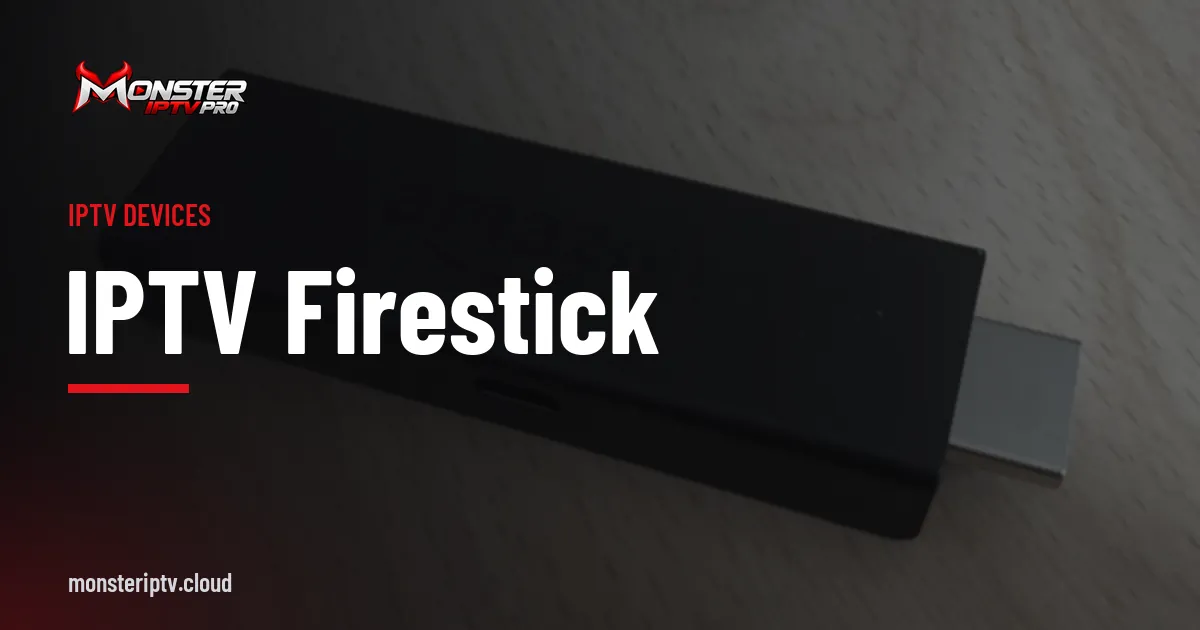
An IPTV Firestick setup is one of the most popular ways to watch internet TV on a big screen. Amazon's Fire TV Stick is inexpensive, plugs straight into an HDMI port and runs a wide range of apps. With the right player app and your login details, you can be watching in a few minutes.
This IPTV Firestick guide walks through choosing an app, installing it safely, entering your details and fixing the problems people run into most often.
What you need
- A Fire TV device, such as a Fire TV Stick, Fire TV Stick 4K or Fire TV Cube, connected to your TV and the internet.
- An Amazon account to install apps from the Amazon Appstore.
- A player app to play your IPTV streams.
- Login details from your IPTV provider: usually a server address, username and password (Xtream Codes–style) or an M3U playlist link.
Note that Amazon's Fire TV range is not all the same. Most models run Fire OS, which is based on Android, but some newer models use a different operating system, Vega OS, with its own app catalogue. Check that your chosen player app is available for your exact model.
Choosing a player app for Fire TV
Several player apps support IPTV logins on Fire TV. Popular choices include IPTV Smarters Pro and TiviMate, each with a different style:
| App | Style | Things to know |
|---|---|---|
| IPTV Smarters Pro | Simple menus for live TV, films and series | Supports Xtream Codes logins and playlists |
| TiviMate | Traditional TV-guide layout | Premium features require a paid upgrade |
Availability in the Amazon Appstore can change, so search the store first. Our guides to IPTV Smarters Pro and the TiviMate IPTV player explain each app in detail. Your IPTV provider can also recommend an app that works well with its service.
Step-by-step IPTV Firestick setup
- Update your Fire TV. Go to Settings, then My Fire TV, then About, and check for updates.
- Install the player app. Search the Amazon Appstore for the app and install it.
- Open the app and choose a login type. Pick the option that matches your details: Xtream Codes API, or M3U playlist URL.
- Enter your details carefully. The server address must be exact, including
http://orhttps://and any port number. - Wait for the content to load. The first load of channels and the programme guide can take a minute.
- Test a few channels, including one you watch often, and check the guide.
Installing apps that are not in the Appstore
Some player apps are not listed in the Amazon Appstore. On Fire OS devices, they can be installed with a downloader app after enabling installation from unknown sources for that app. Only do this for apps from developers you trust, because apps from outside the store are not checked by Amazon. When you are finished, consider turning the setting off again. Avoid any app that promises free access to paid channels; see our guide to IPTV legality.
Getting the best picture on a Firestick
- Use the 5 GHz Wi-Fi band if your router offers it, or add an Ethernet adapter for the most stable connection.
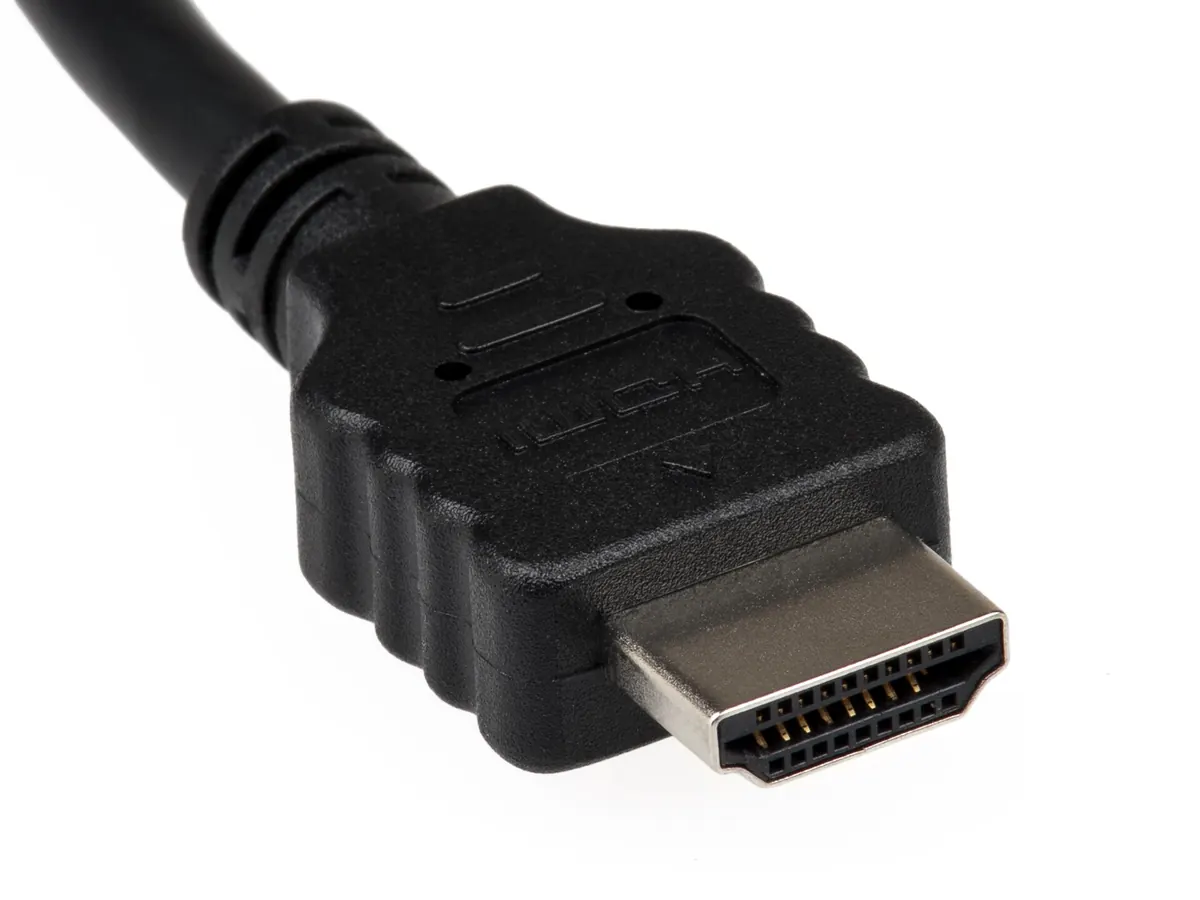
- Use the HDMI extender that comes with many sticks so the device is not hidden behind the TV, blocking the signal.
- Power the stick from the wall adapter, not the TV's USB port, which may not supply enough power.
- Restart occasionally. Hold Select and Play/Pause for a few seconds, or unplug the stick briefly.
Our guide to IPTV streaming quality has more network tips.
Fixing common IPTV Firestick problems
| Problem | Likely cause | Fix |
|---|---|---|
| "Failed to authorize" or login errors | Typo in server address or credentials | Re-enter details exactly, check http/https and port |
| Buffering in the evening | Weak or busy Wi-Fi | Ethernet adapter, 5 GHz Wi-Fi, fewer other streams |
| Programme guide empty | EPG not yet loaded | Refresh the EPG in the app settings, wait a few minutes |
| Low storage warnings | Too many apps or cached data | Uninstall unused apps, clear the player's cache |
| App crashes | Outdated app or firmware | Update the app and Fire TV software |
For login errors in particular, our article on the IPTV Smarters "failed to authorize" error walks through every common cause.
Keeping your Firestick tidy
Over time, a Fire TV Stick collects apps, cached artwork and guide data. A little housekeeping keeps it responsive: uninstall apps you no longer use, clear the cache of your player app if menus become sluggish, and check for system updates every few weeks. If the device remains slow after that, a factory reset followed by a clean setup often restores performance.
Using Monster IPTV on a Firestick
Monster IPTV is used on Amazon Fire TV and Fire TV Stick devices through a compatible player app, and support will recommend one for your model. Request the free trial, install the app, enter the details support sends you and test your favourite channels. See the Fire TV setup notes or how ordering works.
Frequently asked questions
Is IPTV on a Firestick legal?
The Firestick and player apps are legal. Whether a particular service is lawful depends on its content rights and the law where you live. Check before subscribing.
Which Firestick is best for IPTV?
A recent model with HEVC support and enough memory gives the smoothest experience. A 4K model is worth it if you have a 4K TV and plan to watch Ultra HD content.
Why does my Firestick say an app is not available?
App availability depends on your region and Fire TV model. Some newer models run a different operating system with a different app catalogue. Ask your provider for an alternative app.
Can I use one IPTV subscription on two Firesticks?
Yes, if your plan includes two simultaneous connections. Each stick streaming at the same time counts as one device.
Do I need to keep the Firestick plugged in all the time?
No, but leaving it powered lets it install updates in the background. If you unplug it, check for app and system updates the next time you use it.
Summary
IPTV on a Firestick is simple: update the device, install a trusted player app, enter your login details carefully and optimise your connection. With a stable network and the right app, a Fire TV Stick makes an excellent, affordable IPTV player.