Smart IPTV is the name of a long-standing IPTV player app, often called SIPTV, that is widely used on smart TVs. It became popular because it runs on Samsung and LG televisions, where IPTV app choice is limited. The phrase "smart IPTV" is also used generally to mean IPTV on a smart TV, so this guide covers both the app itself and the practical points of using IPTV on a smart TV.
As with every player, the Smart IPTV app does not include channels. You add a playlist from your own IPTV service.
How the Smart IPTV app works
Smart IPTV works differently from many players. Instead of typing your login details on the TV, you link your playlist through the app's website:
- The app shows your TV's MAC address on screen.
- You visit the app's official website on a computer or phone.
- You enter the MAC address and your M3U playlist link (or upload a playlist file).
- You restart the app on the TV, and it loads your channels.
This method avoids typing long addresses with a TV remote, which many people find a relief. It also means you can change your playlist later from any computer or phone without touching the TV's settings, which is convenient when a provider updates its links or when you want to switch services.
Activation
The app has typically offered a short free trial, after which a one-time activation fee per TV is required to keep using it. Check the app's official website for current terms and prices before relying on it. The activation is for the app only and does not include any content.
Which TVs and devices support Smart IPTV
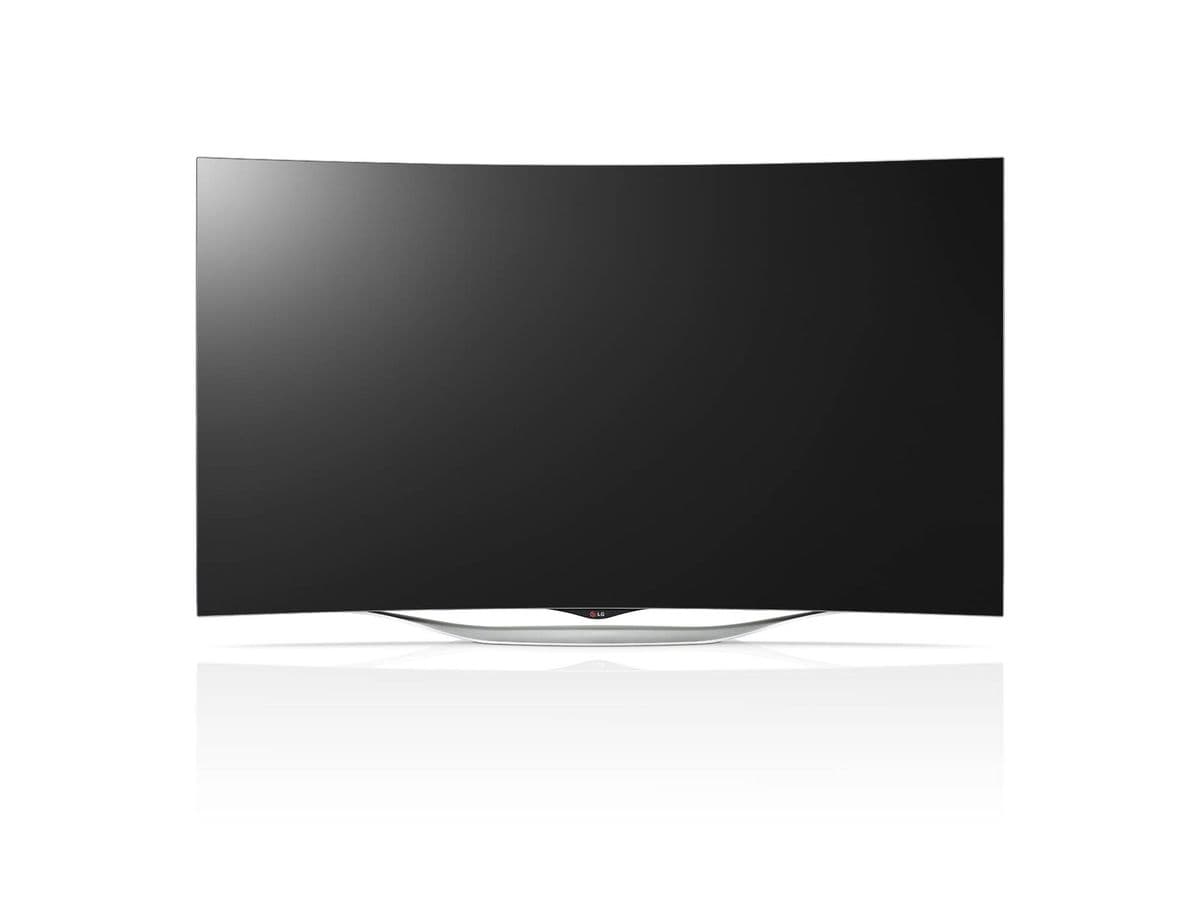
Versions have been available for Samsung (Tizen) and LG (webOS) smart TVs, as well as Android TV and some other platforms. Availability in each TV's app store has changed over the years and varies by model and region. If you cannot find it in your TV's store, check the official website for current installation options for your model.
Setting up the app step by step
| Step | What to do | Tip |
|---|---|---|
| 1 | Install Smart IPTV from your TV's app store | Update the TV's software first |
| 2 | Open the app and note the MAC address | Write it down carefully |
| 3 | Go to the official website on another device | Avoid look-alike sites |
| 4 | Enter the MAC address and your M3U link | Copy the link exactly |
| 5 | Restart the app on the TV | Channels should appear |
| 6 | Add or check the EPG | Some playlists include a guide link |
If your provider gave you Xtream Codes details rather than an M3U link, ask for an M3U playlist link, since the app works with playlists. Our guide to M3U IPTV explains the format.
Tips for everyday use
- Keep the MAC address safe. You will need it again if you change playlists.
- Re-upload after changes. If your provider changes the playlist link, upload the new one on the website and restart the app.
- Use favourites. Mark the channels you watch most to avoid scrolling through long lists.
- Use Ethernet if your TV has a port. It gives more stable playback than Wi-Fi.
Changing TVs or playlists
Because the app identifies each TV by its MAC address, moving to a new television means linking your playlist again on the website using the new TV's address, and activation is usually per device. If you change IPTV service, upload the new playlist link against the same MAC address and restart the app. Keeping a note of each TV's MAC address saves time whenever something changes.
Common Smart IPTV problems
"No playlist" or an empty list
The playlist may not be linked to the correct MAC address, or the link may be wrong. Check both on the website, then restart the app.
Channels load but will not play
The stream format may not be supported on your TV model, or the account may have expired. Check with your provider and test the link in VLC on a computer.
The app has disappeared from the TV store
Apps are sometimes removed from stores. If you already have it installed, it may keep working; otherwise check the official website or use a streaming stick instead.
Smart IPTV versus other smart TV options
Smart IPTV's website upload makes setup easier on a TV, but it relies on M3U playlists and a paid activation. Other apps offer direct Xtream Codes login on the TV. If your TV's options are limited, a streaming stick gives a much wider choice. Our guide to the Samsung IPTV app options explains alternatives.
Using Monster IPTV on a smart TV
Monster IPTV is used on Samsung and LG smart TVs through apps, and support can recommend one for your model and send the login type it needs, such as an M3U link for Smart IPTV. Tell support your TV model before ordering. See the smart TV setup notes.
Frequently asked questions
Is the app free to use?
It has typically offered a short free trial followed by a one-time activation fee per device. Check the official website for current terms.
Does the app include channels?
No. It is a player. You add an M3U playlist from your own IPTV service.
Can Smart IPTV use Xtream Codes logins?
The app is built around M3U playlists. Ask your provider for an M3U link if you only have Xtream Codes details.
Why does the app need my TV's MAC address?
It uses the MAC address to identify your TV, so the playlist you upload on the website is delivered to the right device.
What does smart IPTV mean in general?
Generally, it means watching IPTV through an app on a smart TV rather than a separate box.
Summary
Smart IPTV makes it easy to add a playlist to a smart TV by linking it through the TV's MAC address on the official website. Install it, upload your M3U link carefully, restart the app and test. If your TV's store lacks good options, a streaming stick is a simple alternative.