
Monster IPTV compatible devices
Monster IPTV is watched through a player app on your own device. These are the device types it's used on. Whether your exact model works depends on a suitable app being available for it, so tell support your device before ordering — or test it with the free trial.
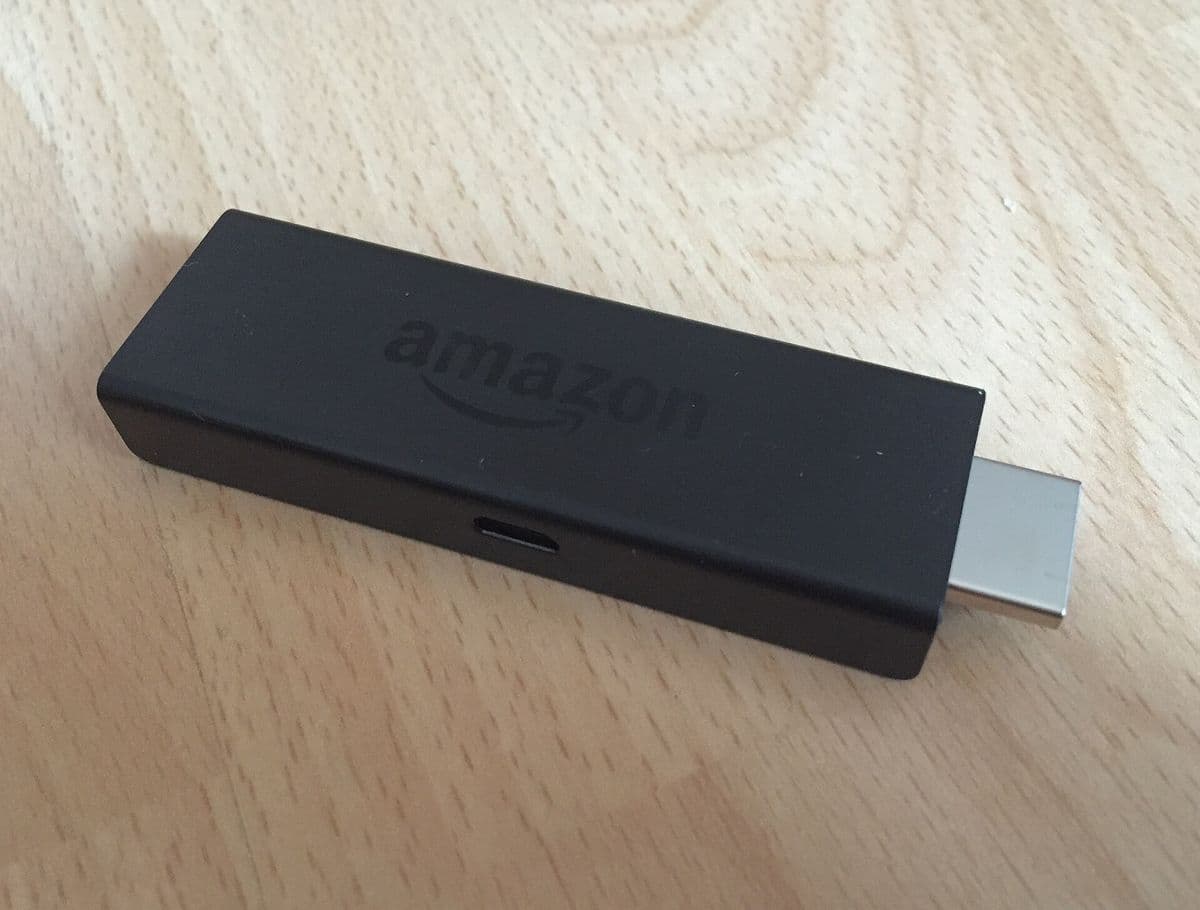
Amazon Fire TV & Fire TV Stick
Plug-in streaming sticks and Fire TV devices. A compatible player app is installed on the stick, then signed in with your Monster IPTV details.
Setup notes
- Make sure your Fire TV is connected to the internet and up to date.
- Install the player app recommended by support for Fire TV.
- Open the app and enter the login details you received after activation.
Android TV & Android TV boxes
Set-top boxes and TVs running Android TV / Google TV. These usually offer the widest choice of player apps.
Setup notes
- Install a player app from the Google Play Store, or the one support recommends.
- Choose the login type that matches the details you were sent.
- Enter your details and let the app load the channel list and guide.
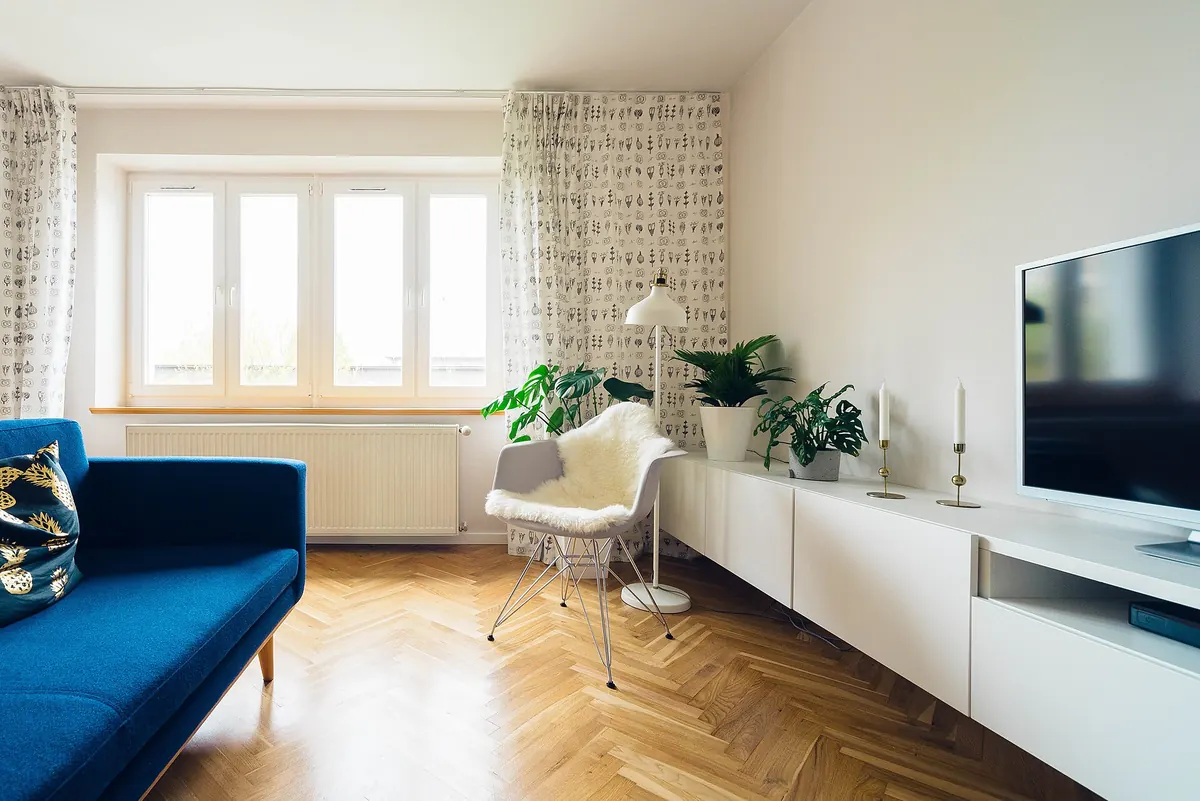
Smart TVs (Samsung, LG)
Samsung and LG smart TVs, through a player app installed from the TV's app store. App availability depends on your TV model and region.
Setup notes
- Tell support your TV brand and model year before ordering.
- Install the player app support recommends from your TV's app store.
- Enter your login details in the app (some apps use an activation code instead).
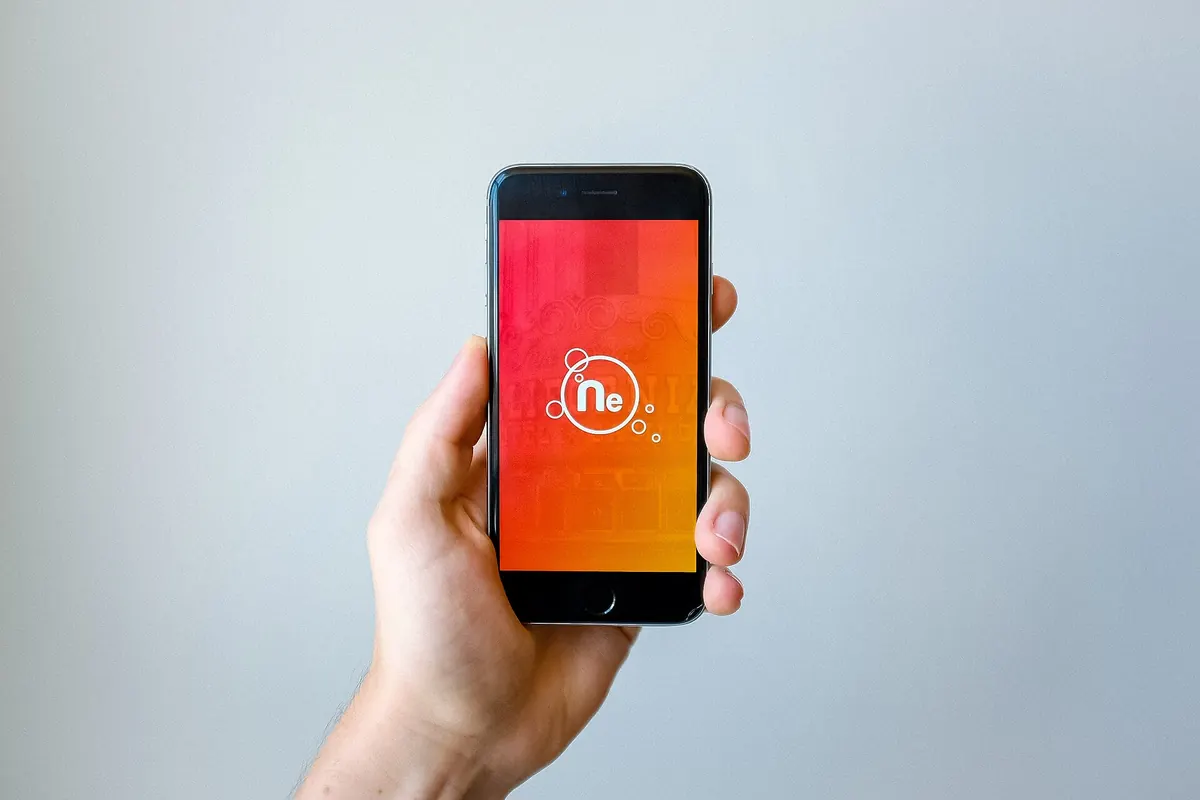
Android smartphones
Watch on the go with a player app from the Google Play Store. Each phone streaming at the same time counts as one device on your plan.
Setup notes
- Install the player app support recommends from Google Play.
- Enter your login details.
- Use Wi-Fi where possible to avoid using up mobile data.
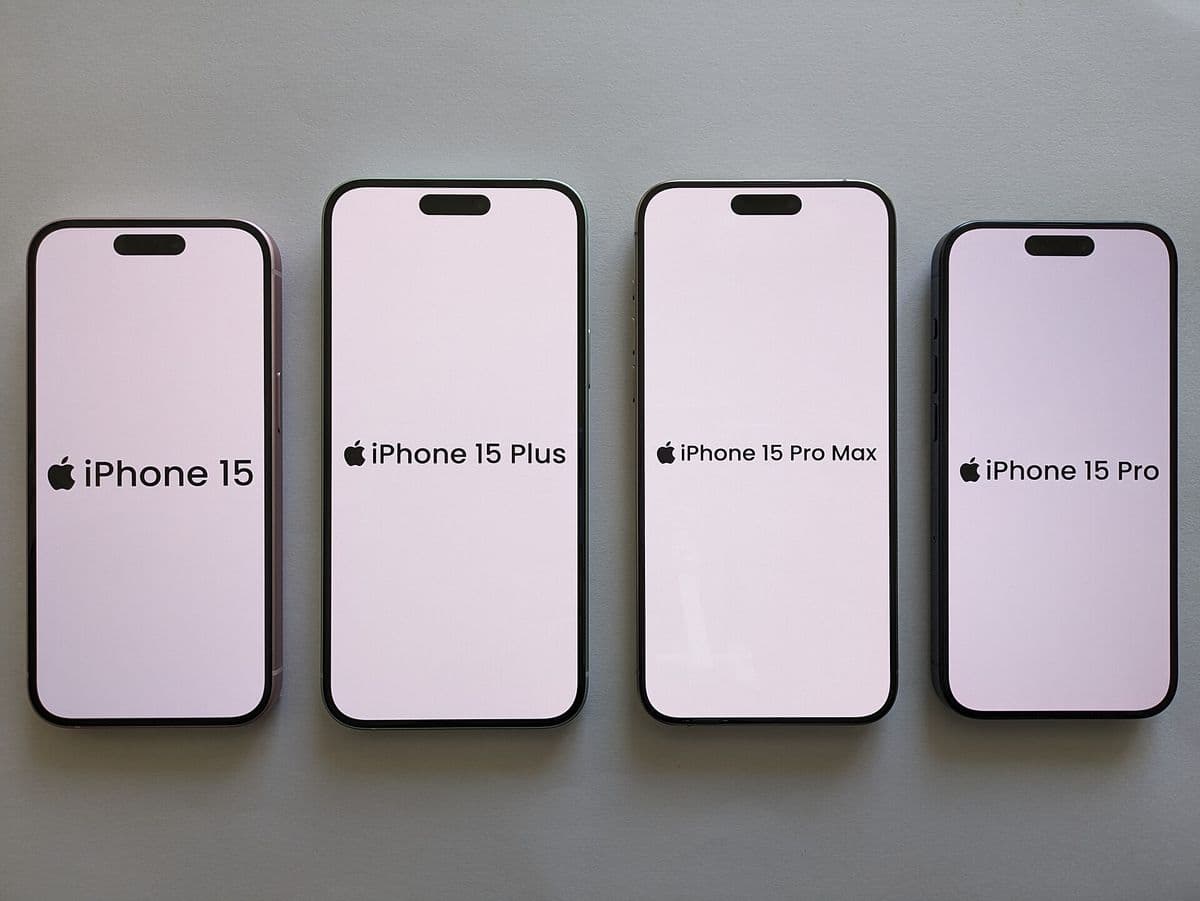
iPhone
iOS smartphones, using a player app from the App Store. Support can suggest an app that suits your iOS version.
Setup notes
- Install the player app support recommends from the App Store.
- Enter your login details.
- Keep the app updated so it stays compatible with your iOS version.
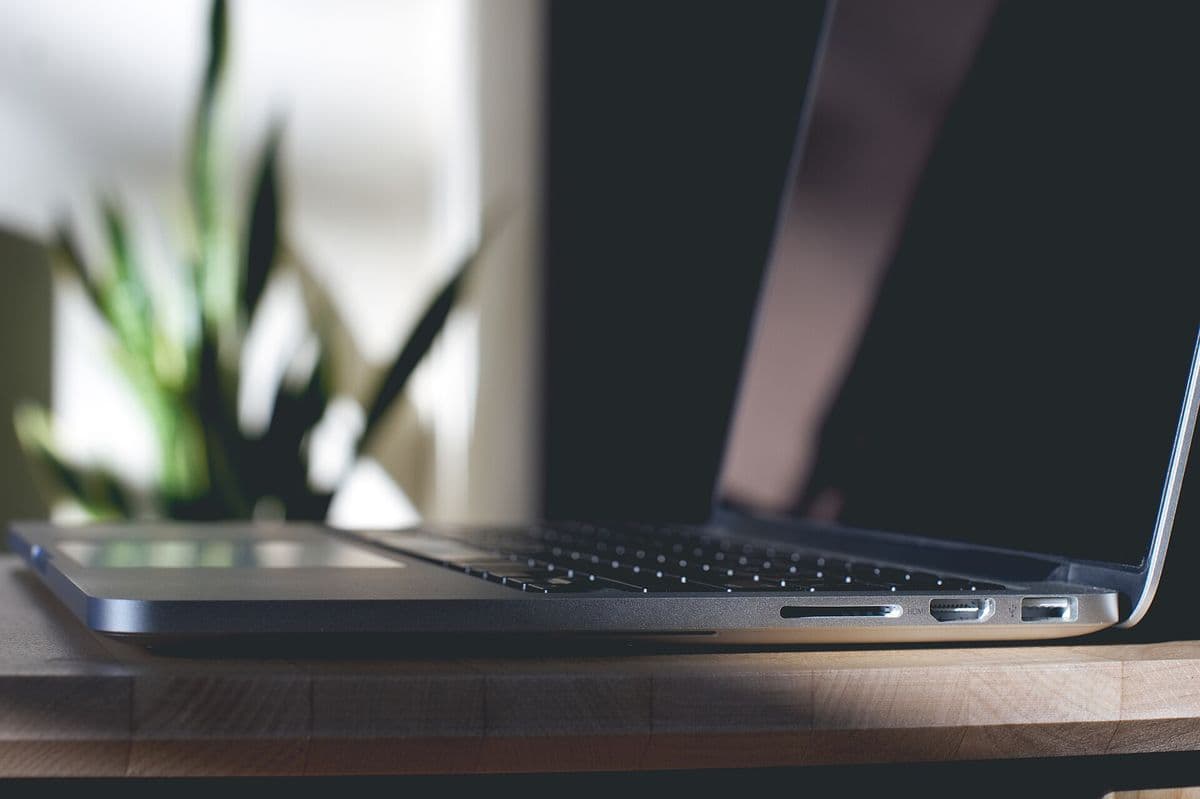
Windows PCs & Mac computers
Desktop and laptop computers, using a compatible desktop player application. Useful as an extra screen on multi-device plans.
Setup notes
- Install the desktop player application support recommends for Windows or macOS.
- Add your playlist or account using the login details you were sent.
- A wired connection usually gives the steadiest playback.
MAG Box
MAG set-top boxes (Infomir) connect to the service through a portal rather than a player app. Support links your subscription to the box.
Setup notes
- Send support your MAG box's MAC address (on the label underneath the box, or in its settings).
- Support links your subscription to that MAC address and sends you the portal address.
- On the box, add the portal address in the portal settings, save and restart.
Chrome
Watch in the Google Chrome browser on a computer, using a web-based player that support recommends. Handy when no app can be installed.
Setup notes
- Ask support which web player to open in Chrome.
- Sign in with the login details you were sent.
- Keep Chrome up to date and use a wired connection for the steadiest playback.
Device not listed?
Other devices — for example tablets or other streaming players — may or may not work, depending on which player apps they support. They haven't been confirmed, so we don't list them here. Ask support with your device's brand and model before ordering, or get in touch to request the free trial and test it yourself.
Player apps are made by independent developers. Their availability, features and pricing are set by those developers and app stores, not by Monster IPTV.
Test it on your device
The free trial is the easiest way to check your device, player app and connection before you pay.