You have bought an IP TV box, whether an Android TV box, a streaming stick or another set-top box, and want it to work well from the start. Most problems people blame on their service, such as stuttering, wrong picture settings or a sluggish menu, come from setup choices made in the first ten minutes. Getting those right saves hours of troubleshooting later.
This guide covers first setup step by step. For choosing a box in the first place, see our IPTV box buying guide.
Step 1: connect it properly
| Connection | Best practice |
|---|---|
| HDMI | Use a TV port that supports the box's maximum resolution and HDR |
| Network | Ethernet if possible; otherwise place the box where Wi-Fi is strong |
| Power | Use the supplied power adapter, not a TV USB port, for sticks that need more power |
| Remote | Pair it during setup; keep batteries fresh |
Some TVs support full 4K HDR only on certain HDMI ports, often labelled. Check your TV manual.
Step 2: run all updates first
Before installing apps:
- Complete the initial setup wizard.
- Go to system settings and check for software updates.
- Install updates and restart.
- Update preinstalled apps from the official store.
Updates fix bugs, improve compatibility and close security gaps.
Step 3: set up the network
- Ethernet: plug in and confirm the box shows a wired connection.
- Wi-Fi: choose the 5 GHz band when the box is close to the router; 2.4 GHz reaches further but is slower and more crowded.
- Note the box's local IP address in network settings for troubleshooting later.
Step 4: display settings
- Set the resolution to match your TV, for example 4K or 1080p.
- Enable match frame rate if available, so 50 fps and 60 fps content plays without judder.
- Enable HDR only if your TV supports it; set it to adapt to content where possible.
- Turn off unnecessary picture processing on the TV, such as heavy motion smoothing, if it causes artefacts.
Step 5: audio settings
- Choose stereo for TV speakers.
- Choose surround passthrough if you have a soundbar or receiver that decodes surround formats.
- If lip-sync is off, adjust audio delay on the TV, soundbar or box.
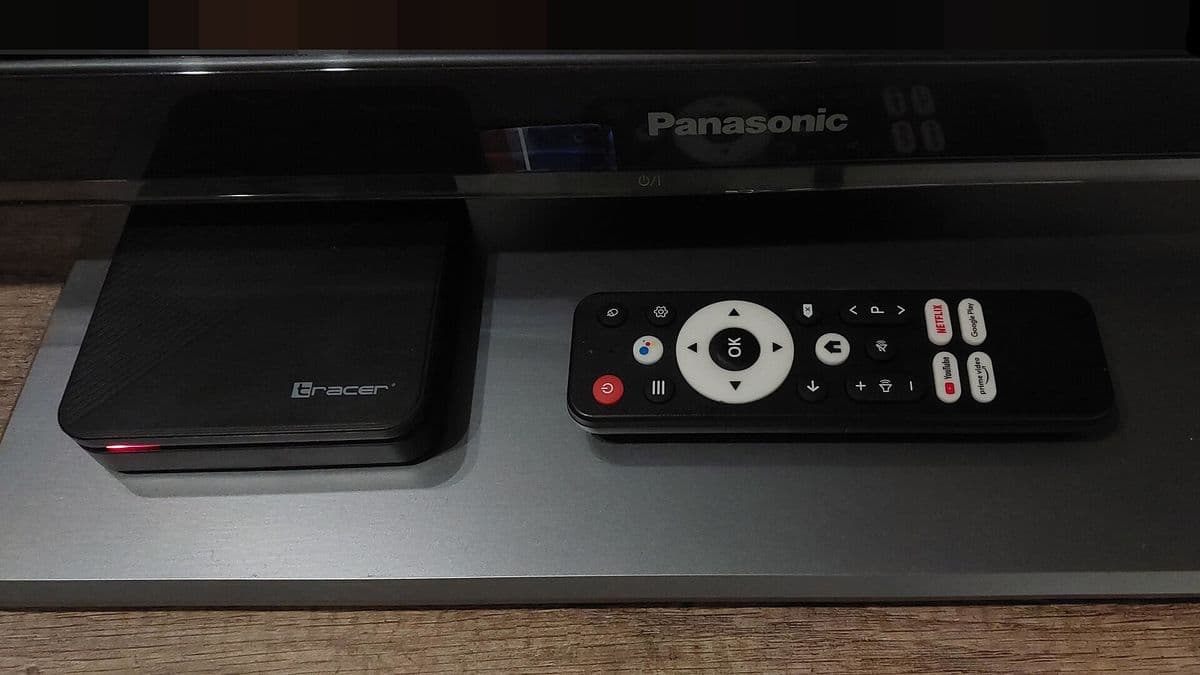
Step 6: enable HDMI-CEC
HDMI-CEC lets one remote control the TV and box, and turns them on together. It may be called Anynet+, Bravia Sync, SimpLink or similar on your TV. Enable it on both the TV and the box. If it causes unexpected switching, turn off individual CEC features rather than all of them.
Step 7: install apps safely
- Install apps only from the official store.
- Choose an IPTV player that supports your login type, Xtream Codes or M3U.
- Enter login details exactly, including
http://orhttps://and any port. - Add your guide (EPG) link if needed.
Avoid "fully loaded" app packs and unofficial downloads.
Step 8: tune for performance
- Uninstall or disable apps you do not use.
- Turn off auto-play previews on the home screen if they slow the menu.
- Restart the box occasionally to clear memory.
- On Android TV boxes, keep some storage free; full storage slows everything.
Step 9: parental controls and profiles
Set a PIN for purchases and app installation, enable parental controls in your IPTV player and, where available, create profiles for family members.
Troubleshooting after setup
| Problem | Check |
|---|---|
| Stuttering | Ethernet, match frame rate, player engine |
| No 4K or HDR | HDMI port, cable, TV settings |
| No sound through soundbar | Audio output format and CEC/ARC settings |
| Slow menus | Unused apps, storage space, restart |
| Remote not working | Pairing, batteries, CEC |
Keeping the box healthy over time
- Check for system updates every month or enable automatic updates.
- Keep the box in a ventilated spot; sticks behind TVs can overheat, and an HDMI extender cable can help.
- Clear the cache of apps that misbehave rather than reinstalling straight away.
- Restart the box weekly if it stays on all the time.
When to factory reset
If the box remains slow or unstable after updates, uninstalling apps and clearing caches, a factory reset gives a clean start. Note your login details, app list and Wi-Fi password first. After the reset, repeat this guide from step 1 and install only the apps you use.
Common mistakes
- Plugging the box into a TV port without HDR support.
- Skipping system updates.
- Leaving resolution on automatic when it picks the wrong mode.
- Installing apps from unofficial sources.
A worked example
A viewer's new IP TV box shows washed-out colours and stutters on sport. They move it to the TV's HDR-capable HDMI port, set the resolution to 4K, enable match frame rate and connect Ethernet. Colours look correct and sport plays smoothly.
Checklist
- Use the right HDMI port and power adapter.
- Update the system and apps.
- Prefer Ethernet.
- Set resolution, frame rate and HDR.
- Configure audio and CEC.
- Install apps from official stores only.
Key terms
- HDMI-CEC: control of several devices with one remote over HDMI.
- ARC/eARC: HDMI audio return to a soundbar or receiver.
- Match frame rate: switching the display to the content's frame rate.
Using an IP TV box with Monster IPTV
Monster IPTV works with popular boxes and third-party players. Support can help you choose an app and enter your login; see the supported devices page. Fire TV owners can also read our IPTV Firestick guide.
Frequently asked questions
Do I need Ethernet for an IP TV box?
Not always, but it is the most reliable option, especially for live sport and 4K.
Why does my picture look washed out?
HDR settings or the HDMI port may be wrong. Check both.
What is match frame rate?
A setting that switches your TV to the content's frame rate to avoid judder.
Should I update the box before installing apps?
Yes. Updates fix bugs and improve compatibility.
Why is my box slow?
Too many apps, little free storage or a need for a restart.
Summary
A new IP TV box performs best when connected to the right HDMI port, updated, wired to the network, set to the right display and audio modes, and kept tidy. Install apps from official stores and tune performance from day one.