A VPN IPTV setup routes your streaming device's traffic through an encrypted VPN connection. Whether that helps depends on your situation; our guide to IPTV VPN effects explains when a VPN helps or hurts. This article is practical: how to set up a VPN on common streaming devices and routers, how to use split tunnelling and how to test the result.
A VPN does not make unlicensed content legal, and using a VPN to bypass a service's geographic restrictions may breach its terms. Use VPNs for privacy and security, within your services' terms.
VPN IPTV device support at a glance
| Device | Typical VPN setup |
|---|---|
| Amazon Fire TV | VPN apps available in the Amazon Appstore |
| Android TV / Google TV | VPN apps in Google Play |
| Apple TV | VPN apps on recent tvOS versions, from some providers |
| Smart TVs | Often no VPN apps; use the router |
| Router | Router-level VPN covers all connected devices |
Fire TV and Android TV
- Install your VPN provider's app from the official store.
- Sign in and choose a nearby server.
- Enable split tunnelling if available and choose which apps use the VPN.
- Open your IPTV player and test playback.
Apple TV
Recent tvOS versions support VPN apps from some providers. Install from the App Store, sign in and connect. Options for split tunnelling may be limited.
Router-level VPN
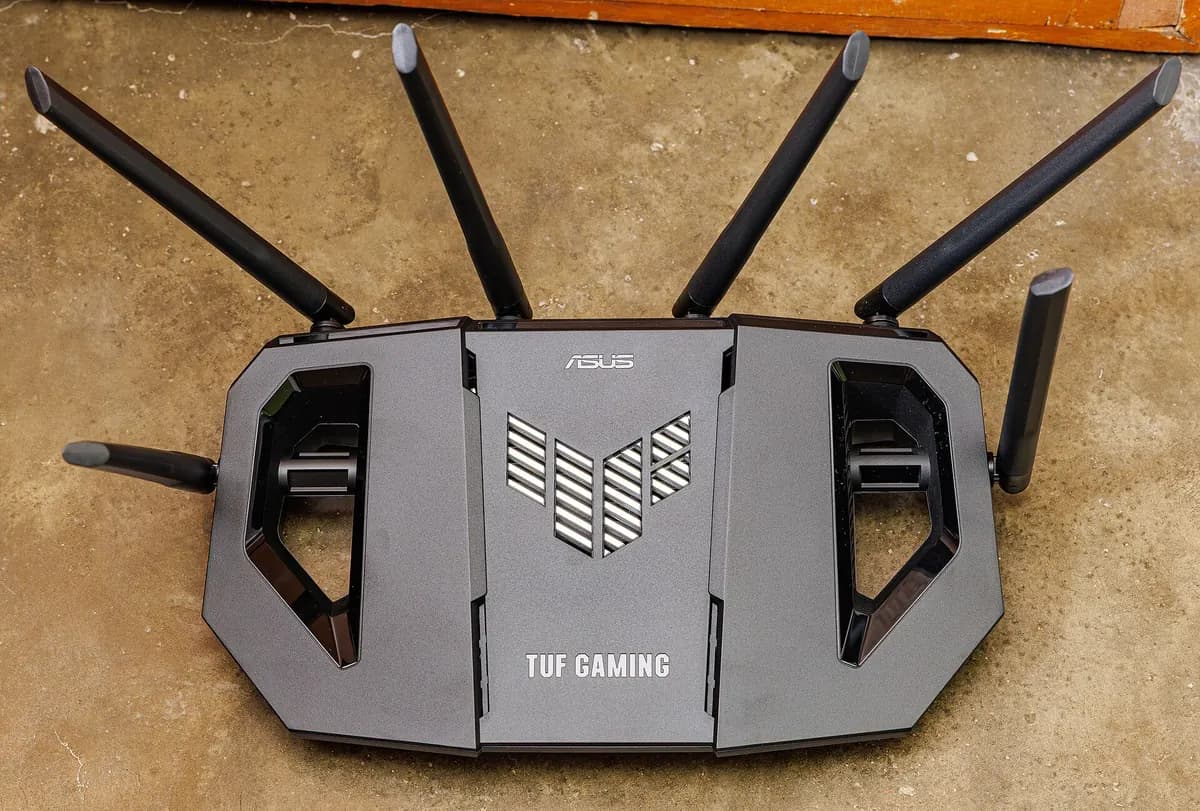
A router with VPN support protects every device, including smart TVs without VPN apps. Trade-offs: all traffic may slow down, and excluding specific devices or apps can be harder. Some routers allow per-device VPN rules.
Split tunnelling
Split tunnelling lets some apps or devices bypass the VPN. Common uses:
- Keep your IPTV app outside the VPN if your service blocks VPN addresses.
- Keep browsing private through the VPN while streaming directly.
Choosing a server
Pick a server close to you for the lowest latency. Distant servers add delay and reduce speed, and may trigger location checks in streaming apps.
Testing your VPN IPTV setup
- Note speed and latency without the VPN.
- Connect the VPN and repeat.
- Play the same channel both ways at peak time.
- Check start time, buffering and picture quality.
- Adjust server choice or split tunnelling based on results.
Our IPTV line test guide explains the measurements.
Troubleshooting
| Problem | Try |
|---|---|
| Login fails with VPN on | Exclude the IPTV app via split tunnelling |
| Slow streams | Choose a nearer server |
| Smart TV cannot use VPN | Use router-level VPN or a streaming stick |
| VPN app missing | Check your device's store and region |
Choosing a VPN provider for streaming
Look for providers with apps for your streaming devices, nearby servers, a clear no-logs policy, split tunnelling and a money-back period so you can test performance. Avoid free VPNs that sell data or show adverts. Our guide to the best VPN for IPTV explains the criteria.
Keeping the VPN updated
Update VPN apps and router firmware regularly. Updates fix security issues and often improve speed and compatibility with streaming apps.
Security beyond the VPN
A VPN is one layer. Keep streaming apps from official stores, use strong passwords and keep your router's admin password changed from the default. These basics protect your home whether or not a VPN is running.
Common mistakes
- Using distant servers for local streaming.
- Running a router VPN that slows every device unnecessarily.
- Assuming a VPN fixes Wi-Fi problems.
- Using a VPN to breach service terms.
A worked example
A viewer wants privacy for browsing on a Fire TV but finds their IPTV login fails with the VPN on. They enable split tunnelling to exclude the IPTV player, keep a nearby VPN server for other apps and confirm smooth playback during an evening match.
Checklist
- Check device support.
- Install the VPN from official stores.
- Choose nearby servers.
- Use split tunnelling where needed.
- Test with and without the VPN.
Key terms
- Split tunnelling: choosing which apps use the VPN.
- Router VPN: a VPN running on the router for all devices.
- Latency: delay for data to travel.
Monster IPTV
If your VPN affects Monster IPTV playback, test without it and contact support with your results via the contact page.
When to turn the VPN off
If you see login errors, buffering or "content unavailable" messages, test with the VPN off. If the problem disappears, adjust split tunnelling or server choice. Many viewers keep the VPN on for browsing and leave streaming apps outside it.
Mobile devices
On phones and tablets, VPN apps are easy to install and toggle. Use split tunnelling if your IPTV app has trouble with the VPN, and remember VPNs can use a little more battery and data.
Keeping notes
Record which server and settings give the best streaming performance on each device, so you can restore them after updates.
Families and shared devices
On a family TV, a router-level VPN affects everyone. Explain to others why it is there, and consider excluding the TV if it causes problems. Device-level VPNs give more control and can be switched off when not needed. Keep the VPN account details private.
Quick summary
Install from official stores, choose nearby servers, use split tunnelling and test before relying on the setup.
Checking the terms
Read your streaming service's terms about VPN use before relying on one, and use official travel options where available.
Frequently asked questions
Can I set up a VPN on Fire TV?
Yes, many VPN providers offer apps in the Amazon Appstore.
What if my smart TV has no VPN app?
Use a router-level VPN or a streaming stick with a VPN app.
Why does my IPTV login fail with a VPN?
Some services block VPN addresses; try split tunnelling.
Which server should I choose?
A nearby server for lower latency.
Does a VPN make unlicensed streams legal?
No.
Summary
A VPN IPTV setup varies by device: apps on Fire TV, Android TV and Apple TV, or a router for everything. Choose nearby servers, use split tunnelling, test the impact and stay within your services' terms.