Kodi Simple IPTV is shorthand for using Kodi, the free and open-source media centre, with its official add-on called PVR IPTV Simple Client. Together they turn Kodi into a full live TV player with channel lists, a programme guide and, on suitable setups, recording through other add-ons. It works on Windows, Mac, Linux, Android and Android TV devices, among others.
This guide explains how to install and configure PVR IPTV Simple Client from Kodi's official repository, add your playlist and guide, and fix common issues.
What Kodi and PVR IPTV Simple Client are
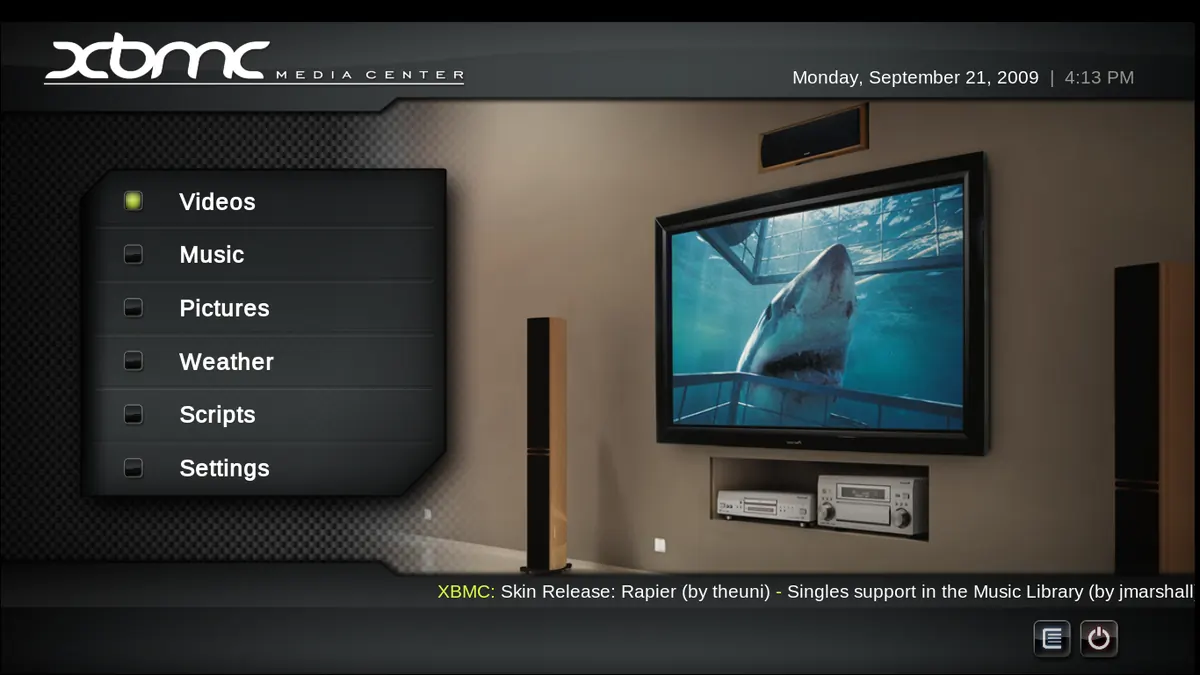
Kodi began life as XBMC (Xbox Media Center) and is now maintained by the XBMC Foundation as a cross-platform media centre. Its interface is designed for TV screens and remote controls.
PVR IPTV Simple Client is an official Kodi add-on that reads an M3U playlist of channels and an XMLTV programme guide, then presents them in Kodi's TV section. It does not provide any channels itself; you supply a playlist from your own IPTV service.
Before you start
You need:
- Kodi installed from the official website or your device's official app store.
- An M3U playlist link from your IPTV provider.
- Optionally, an XMLTV guide (EPG) link from your provider.
Only install add-ons from Kodi's official repository. Third-party add-ons and "builds" that promise free channels carry security and legal risks, and are a common source of malware. Our guide to free IPTV explains the risks.
Step-by-step Kodi Simple IPTV setup
- Open Kodi and go to Settings (the gear icon).
- Choose Add-ons, then Install from repository.
- Open PVR clients and select PVR IPTV Simple Client.
- Install it, then choose Configure.
- In the General section, set the location to Remote path (Internet address) and paste your M3U playlist link.
- In the EPG section, choose the remote path and paste your XMLTV guide link, if you have one.
- Confirm, then enable the add-on if it is not enabled automatically.
- Return to the home screen and open TV. Channels should appear after a short loading period.
If channels do not appear, restart Kodi; the add-on loads the playlist on start-up.
Kodi Simple IPTV settings worth knowing
| Setting | What it does | When to change it |
|---|---|---|
| Refresh interval | How often the playlist reloads | If your provider updates channels often |
| EPG time shift | Adjusts guide times | If the guide is offset by an hour or more |
| Channel logos | Path to logo images | If logos are missing |
| Group handling | Uses playlist groups as Kodi channel groups | To organise large playlists |
| Catch-up settings | Enables catch-up where supported | If your service provides catch-up streams |
Using the guide and channel groups
Once loaded, Kodi's TV section shows a channel list and a full programme guide. You can:
- Browse by channel group, using the groups defined in your M3U playlist.
- Add channels to favourites or create your own groups.
- Use the guide to jump straight to a programme.
Our guide to IPTV schedules and EPG data explains how XMLTV guides are matched to channels using the tvg-id field.
Troubleshooting Kodi Simple IPTV
No channels appear
Check the M3U link is correct and active by opening it in VLC on a computer. Then confirm the add-on is enabled and restart Kodi.
The guide is empty
Make sure the XMLTV link is entered, then clear the guide data from Kodi's PVR and Live TV settings and let it reload. Channel IDs in the playlist must match those in the guide.
Guide times are wrong
Adjust the EPG time shift in the add-on settings, and check your device's time zone.
Playback stutters
Kodi's own player settings and your network both matter. Try a wired connection, and see our guide to IPTV streaming quality.
Using Kodi Simple IPTV with a remote
Kodi is designed for the sofa, so a remote makes a big difference. On Android TV devices, the standard remote works out of the box. On a PC connected to a TV, a cheap USB media remote, a wireless keyboard or the official Kodi remote app for phones gives comfortable control. In the TV section, the arrow keys move through the guide, and the context menu button opens options such as adding a channel to favourites or switching groups.
Who Kodi Simple IPTV suits
Kodi is ideal if you want a free, customisable, TV-style interface on a computer connected to a TV, or on Android TV hardware. It takes a little more setup than dedicated IPTV apps, and it works with M3U playlists rather than direct Xtream Codes logins. For a quicker setup on a PC, see our guide to IPTV players for Windows.
Keeping Kodi healthy
- Update Kodi and the add-on when new versions are available.
- Avoid unofficial builds that bundle many add-ons.
- Back up your configuration before major upgrades.
- If Kodi becomes slow, clear the guide and texture caches from the settings.
Frequently asked questions
Is Kodi Simple IPTV free?
Yes. Kodi and the PVR IPTV Simple Client add-on are free and open source. You still need a playlist from an IPTV service.
Does PVR IPTV Simple Client support Xtream Codes logins?
It is designed around M3U playlists and XMLTV guides. If your provider gives you Xtream Codes details, ask for an M3U playlist link to use with Kodi.
Is Kodi legal?
Kodi itself is legal, open-source software. Legal concerns arise from third-party add-ons that access unauthorised content, which you should avoid.
Can Kodi record live TV from IPTV?
PVR IPTV Simple Client focuses on playback. Recording usually requires a separate backend or add-on, which adds complexity.
Why does Kodi take time to load channels at start-up?
The add-on downloads your playlist and guide each time Kodi starts or at the refresh interval. Large playlists and guides take longer.
Summary
Kodi Simple IPTV setups pair a free media centre with an official add-on to deliver live TV and a programme guide. Install PVR IPTV Simple Client from the official repository, add your M3U and XMLTV links, and avoid unofficial add-ons for a safe, flexible TV experience.