If you want to subscribe IPTV for the first time, the process is simple once you know the order: shortlist, trial, choose a plan, pay safely, receive your login, set up your app and check everything works. Skipping steps, especially the trial and safe payment, is where most problems start.
This guide walks through each step so your first channel plays smoothly and your money stays protected.
Step 1: know what you want
Before looking at services, write down:
- The channels and types of content you watch most.
- How many screens might play at the same time.
- Which devices you use: smart TV, streaming stick, phone, computer.
- Your budget per month.
This list keeps you focused when comparing offers.
Step 2: build a shortlist
Choose two or three services that publish clear plans, name an operator and offer a trial. Avoid offers with no contact details, pressure tactics or prices that look too good for premium content. Our best IPTV service guide explains what to compare.
Step 3: take a trial
| Test | Why |
|---|---|
| Evening viewing | Peak-time stability |
| A live event | Real-world pressure |
| Your favourite channels | They are what you pay for |
| The programme guide | Daily usability |
| One support question | How help works |
Our free trial guide explains how to plan this.
Step 4: choose the right plan
| Decision | Guidance |
|---|---|
| Length | Start with a month; go longer once confident |
| Devices | Match your realistic number of simultaneous screens |
| Renewal | Note whether it renews automatically |
| Refunds | Read the policy before paying |
Our guide to plan lengths, devices and renewal terms covers this in detail.
Step 5: pay safely
- Use a method with buyer protection, such as a credit card or a protected payment service.
- Avoid transfers to personal accounts or gift cards.
- Keep the receipt and a screenshot of the plan.
Step 6: receive and store your login
You will usually receive one of:
- Xtream Codes details: server URL, username and password.
- An M3U link: a single playlist address, sometimes with a separate guide link.
Store them securely, for example in a password manager. Do not share them publicly.
Step 7: set up your app
- Install a compatible player from your device's official store.
- Choose the login type that matches your details.
- Enter everything exactly, including
http://orhttps://and any port. - Add the guide link if supplied separately.
- Wait for channels to load.
Our IPTV player guide compares apps for each device.
Step 8: check everything works
- Play several channels, including your favourites.
- Check the guide shows correct times.
- Test on each device you plan to use, one at a time.
- Mark favourites and set a parental PIN if needed.
Step 9: set reminders
Add the plan's end date to your calendar a week ahead. Decide then whether to renew, change plan or switch.
What to do in the first week
The first week after you subscribe is the best time to spot problems while they are easy to fix. Watch at different times, try every device you plan to use and check that the guide stays accurate. Note anything unusual with the date and time. If something does not work, contact support early with clear details: device, app, channel and error message.
Setting up the household
Show everyone at home where to find the app, how to open favourites and what to do if a channel stops: try another channel, restart the app, then tell whoever manages the subscription. A short shared note avoids repeated questions. If children use the TV, set parental controls in the player and on the device.
Keeping your details safe
Your login is part of what you paid for. Keep it private, never post it when asking for help and change it with your provider if you think someone else has it. Stay within your plan's device limit to avoid connection errors.
Common mistakes
- Paying for a year before testing.
- Choosing too few devices for the household.
- Entering the server URL without the port.
- Losing the login details.
A worked example
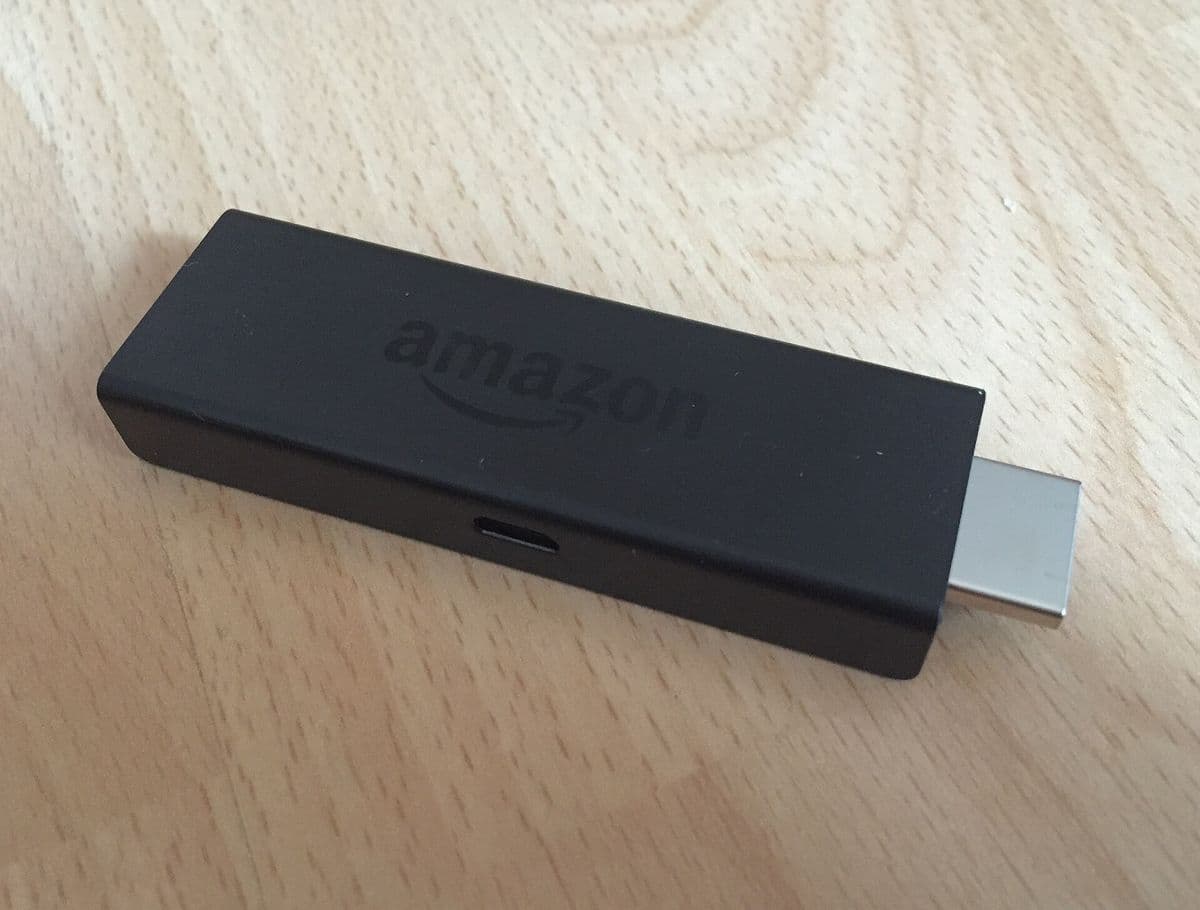
A couple decides to subscribe IPTV for their living-room TV and two phones. They shortlist three services, trial two over a weekend including a football match, and choose the one that stayed stable. They buy a one-month, two-device plan by card, receive Xtream details, install a player on their Fire TV and phones, add favourites and set a reminder for renewal.
Checklist
- List your needs.
- Shortlist transparent services.
- Take a trial.
- Choose length and devices carefully.
- Pay safely and store your login.
- Set up, test and set reminders.
Key terms
- Xtream Codes login: server URL, username and password.
- M3U link: a playlist address.
- Device limit: how many screens can play at once.
How to subscribe to Monster IPTV
Monster IPTV offers plans of one, three, six and twelve months for one to five devices, starting from $15, with a free trial. You can order through WhatsApp or Telegram. See pricing and how it works.
When to upgrade your plan
If you regularly hit the device limit, or a family member wants to watch in another room, consider moving to a plan with more devices at renewal. Upgrading at the end of a plan is usually simpler than changing midway.
Frequently asked questions
How do I subscribe IPTV safely?
Shortlist transparent services, take a trial, pay with a protected method and keep your receipt.
What will I receive after paying?
Usually Xtream Codes details or an M3U link, sometimes with a guide link.
Which plan length should I choose first?
A short plan, then a longer one once you are confident.
How many devices do I need?
Count the screens that may play at the same time.
What app should I use?
A compatible player from your device's official store.
Summary
To subscribe IPTV without surprises, list your needs, shortlist transparent services, take a trial, choose length and devices carefully, pay safely, store your login, set up your app and check everything works. Then set a reminder for renewal.