Smart One IPTV, also written SmartOne IPTV, is a TV player app name. When it stops working, the cause is usually one of a handful of things: the playlist, the device identifier, the network, the guide or the app's activation. A structured approach finds the problem quickly. Monster IPTV is not affiliated with the developer, and menus and messages vary by version, so use this guide alongside the app's official help.
For first-time setup, see our SmartOne IPTV guide. This article focuses on troubleshooting.
A troubleshooting order that works
- Network: is the TV online? Try another app.
- App: restart it; update it if an update is available.
- Identifier: does the ID on the website match the one in the app?
- Playlist: does the link work elsewhere, such as in VLC on a computer?
- Activation: has the trial ended?
- Service: is your subscription active?
Working in this order avoids changing many things at once.
Common errors and fixes
| Symptom | Likely cause | Fix |
|---|---|---|
| Playlist not loading | Wrong identifier or link | Re-check the ID shown in the app; re-upload the link |
| "No channels" | Playlist empty or expired login | Test the link in VLC; contact your provider |
| Guide empty | No EPG link or ID mismatch | Add or refresh the guide |
| Constant buffering | Weak Wi-Fi or busy network | Use Ethernet; pause downloads |
| Some channels fail | Those streams are down | Try later; report to provider |
| "Trial expired" | Trial period ended | Activate through the official site |
| App missing after TV update | Store changes or model support | Reinstall; use a streaming device |
Testing the playlist outside the TV
Open your playlist link in VLC on a computer. If it fails there too, the problem is with the link or your service, not the TV app. If it works in VLC but not on the TV, focus on the identifier, the app and the TV's network.
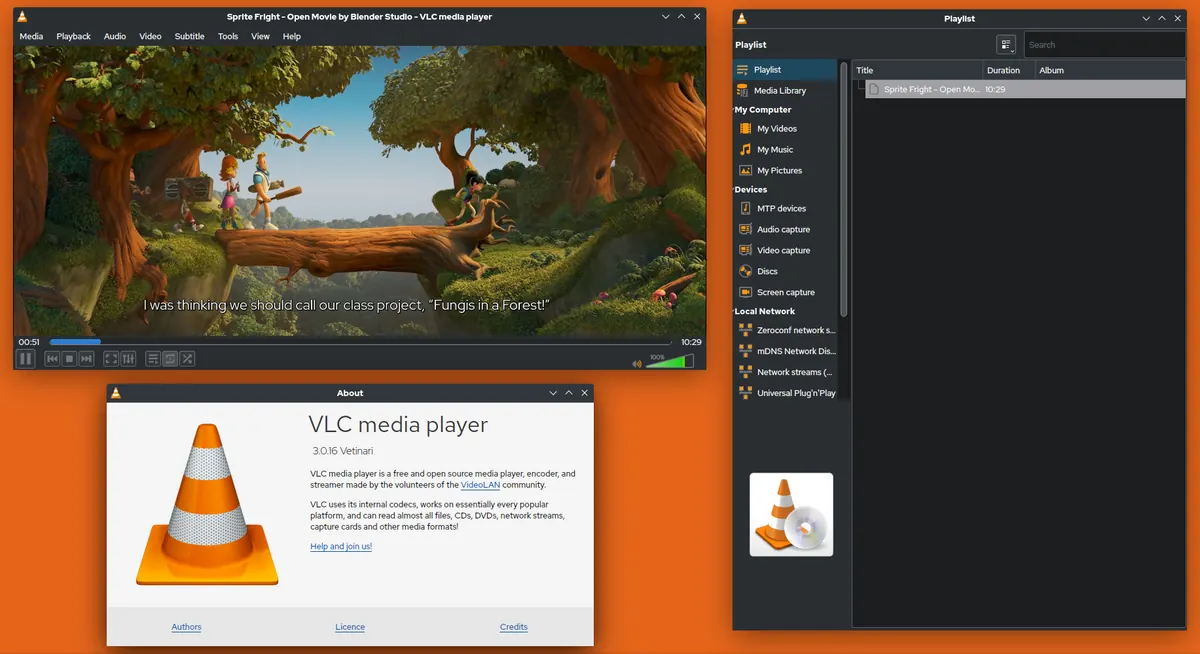
Network checks
- Restart the router and TV.
- Connect the TV by Ethernet if possible.
- Check that other streaming apps work on the TV.
- If you use a VPN on the router, test without it.
Identifier mix-ups
Some TVs have different identifiers for Wi-Fi and Ethernet. If you switched from Wi-Fi to cable, the app may show a different identifier. Upload the playlist again using the identifier currently shown in the app.
Guide problems
If the guide is empty, check whether your playlist includes a guide reference or add your provider's EPG link. If times are wrong, check the TV's time zone and the app's guide offset.
When to contact support
Contact your service provider if the playlist fails in every app. Contact the app developer if the playlist works elsewhere but the app misbehaves after updates. Include the TV model, app version, error message and time. Our failed to authorize guide covers login errors that apply across players.
When the TV itself is the problem
Older smart TVs can struggle with large playlists or certain stream formats, even when the app is set up correctly. Signs include slow menus, long channel changes and stutter on HD sport while other devices play smoothly. Clearing the app's data, removing unused apps and restarting the TV can help. If problems persist, a streaming stick or Android TV box usually performs better than the TV's own system.
Checking after TV firmware updates
TV system updates sometimes change app behaviour or network settings. After an update, check that the app still opens, the identifier is unchanged and the playlist loads. If the app disappeared, reinstall it from the store.
Keeping a fault log
Write down when problems occur, which channels and what the screen showed. Patterns, such as buffering only in the evening or only on one channel group, point quickly to the cause and make support conversations easier.
Common mistakes
- Changing several settings at once.
- Re-uploading with an old identifier.
- Assuming the app is broken when the playlist has expired.
- Ignoring the TV's own network status.
A worked example
A viewer's Smart One IPTV app shows no channels after they move the TV and connect it by cable. The playlist works in VLC, so they check the app and see a different identifier from before. They upload the playlist again with the new identifier, restart the app and channels return.
Checklist
- Check the network.
- Restart and update the app.
- Match the identifier.
- Test the playlist in VLC.
- Check activation and subscription status.
Key terms
- Identifier: an ID, often a MAC address, linking a playlist to the TV.
- EPG offset: a setting shifting guide times.
- Playlist link: the address of your channel list.
Using Smart One IPTV with Monster IPTV
Monster IPTV playlist links work with many third-party players. Support can help test your link and suggest fixes; see the supported devices page.
Preventing problems
Keep the app and TV updated, use a wired connection for the main TV, save your playlist link and identifier in a private note and re-upload promptly when your provider changes details. These habits prevent most Smart One IPTV issues before they start.
Quick reset checklist
Restart router, restart TV, reopen the app, confirm the identifier, re-upload the playlist, then test several channels before changing anything else.
Frequently asked questions
Why is Smart One IPTV not loading my playlist?
Usually a wrong identifier or link; re-check the ID shown in the app and upload again.
Why does the guide show nothing?
The guide link may be missing or channel IDs may not match.
Why did my identifier change?
Some TVs use different IDs for Wi-Fi and Ethernet.
How do I know if the problem is the app or the service?
Test the playlist in VLC; if it fails there, contact your provider.
Is Smart One IPTV affiliated with Monster IPTV?
No. Monster IPTV has no affiliation with its developer.
Summary
Troubleshoot Smart One IPTV in order: network, app, identifier, playlist, activation and service. Test the playlist in VLC to separate app problems from service problems, and change one thing at a time.