SmartOne IPTV is a name used for a player app available on some smart TVs and streaming devices. Like other TV players, it does not include channels: you add a playlist from your own service. Many apps of this kind link playlists to your device through a website, so you do not have to type long addresses with a remote. Monster IPTV is not affiliated with the developer of any app using this name, and features, pricing and availability change, so follow the official instructions in the app.
This guide explains how setup usually works, what to check before paying for activation and how to fix common problems.
Before you install: verify the app
| Check | Why |
|---|---|
| Official store listing | Avoid lookalikes on unofficial sites |
| Developer name | Must match the official website shown in the app |
| Recent reviews | Mentions of your TV model and any problems |
| Activation terms | What a trial includes and what activation costs |
Our guide to evaluating a lesser-known player explains these checks in more detail.
How setup usually works
- Install the app from your TV's official store.
- Open it and note the device identifier shown, often a MAC address or device ID, and any key.
- On a phone or computer, type the website address shown in the app.
- Enter the device identifier and add your playlist link or file.
- Restart the app on the TV and wait for channels to load.
The process is similar to other web-upload players; our SmartIPTV guide describes a comparable flow.
Activation
Apps of this type commonly offer a trial, then ask for an activation fee paid to the developer for that device. Before paying:
- Confirm the payment page is on the official website shown in the app.
- Check what the fee covers and whether it is one-time or recurring.
- Avoid "activation codes" sold by third parties.
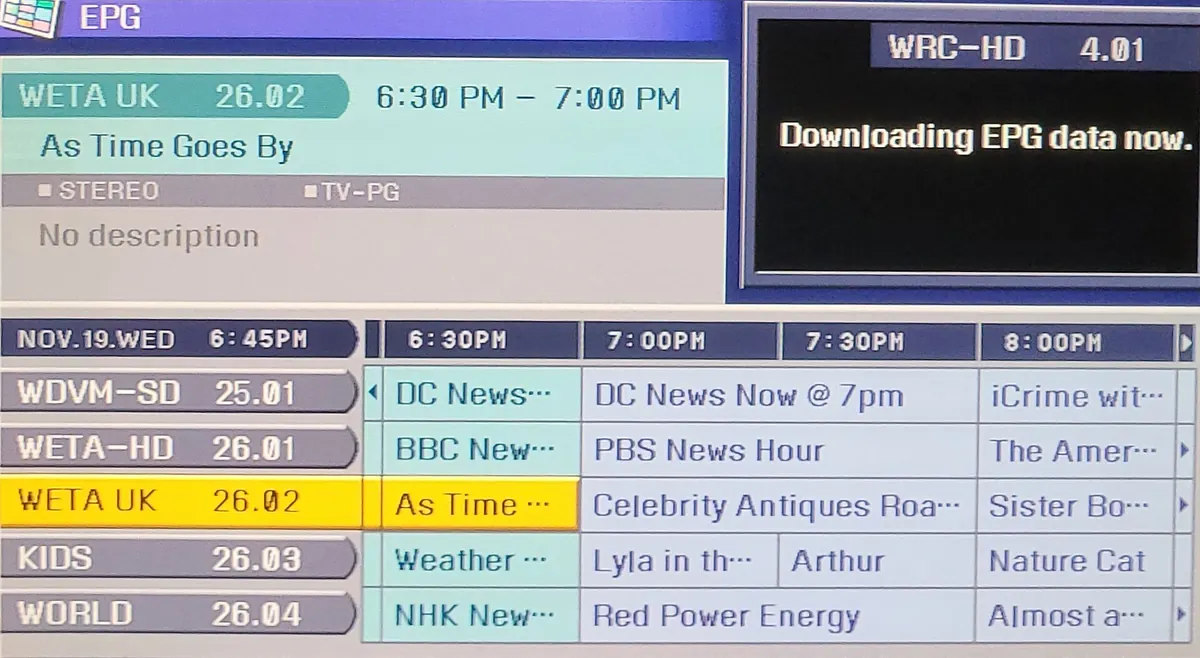
Adding a programme guide
If your playlist includes a guide reference, the app may load it automatically. Otherwise look for an EPG option on the website or in the app settings. Guide data appears only where channel IDs match the guide.
Common problems and fixes
| Problem | What to try |
|---|---|
| Playlist does not appear | Restart the app; check the identifier you entered |
| Channels fail to play | Check the playlist link with your provider |
| Guide is empty | Add an EPG link or refresh |
| Trial ended | Activate through the official site |
| App missing from TV store | Use a streaming device with another player |
Privacy and security
Uploading a playlist shares your playlist link with the app's service. Use only the official site, keep your device key private and re-upload a new link if your provider changes your login.
Alternatives
If SmartOne IPTV is not available or does not suit you, other players work with the same playlist. Our best IPTV player guide compares options by platform.
Using several TVs
Each TV usually has its own identifier and needs its own upload and, after the trial, its own activation. Keep a private note of which identifier belongs to which room. Each TV playing at the same time also counts toward your service's device limit.
When you change TVs or services
A new TV means a new identifier, so upload your playlist again and activate the new device. If your provider sends a new playlist link, re-upload it on the official website and restart the app. Remove old entries where the site allows it, especially before passing an old TV to someone else.
Remote navigation tips
Keep favourites short, use the search function for occasional channels and learn the shortcut for returning to the previous channel. These small habits make daily use much quicker with a TV remote.
Common mistakes
- Uploading on an imitation website.
- Entering the wrong identifier.
- Buying activation codes from unofficial sellers.
- Assuming the app includes channels.
A worked example
A viewer installs SmartOne IPTV on a smart TV, notes the device ID and uploads their provider's M3U link on the official website. After restarting, channels load, but the guide is empty. They add the provider's EPG link and refresh. At the end of the trial, they compare it with another player and keep the one with the clearer guide.
Quick checklist
- Verify the store listing and developer.
- Note the device identifier.
- Upload on the official website.
- Add a guide.
- Activate only through the developer.
Key terms explained
- Device identifier: an ID, often a MAC address, that links a playlist to your TV.
- Activation: a payment unlocking the app on a device.
- EPG: electronic programme guide.
Using SmartOne IPTV with Monster IPTV
Monster IPTV provides playlist links that work with many third-party players. Support can help with setup; see the supported devices page.
Choosing between upload-style and login-style players
Upload-style players such as SmartOne IPTV avoid typing on a remote, while players with an on-screen Xtream login make switching services quicker. If your TV supports both types, test each for an evening and keep the one your household finds easier.
Accessibility
Check whether the app allows larger text or clearer layouts if anyone in your home finds small menus hard to read. Some TVs also offer system-wide zoom or high-contrast settings that help with any player you choose to install.
Frequently asked questions
What is SmartOne IPTV?
A player app name found on some smart TVs and devices. It plays playlists you add.
Does SmartOne IPTV include channels?
No. You add a playlist from your service.
How do I upload a playlist?
Usually through the official website shown in the app, using your device identifier.
Is SmartOne IPTV affiliated with Monster IPTV?
No. Monster IPTV has no affiliation with its developer.
What if my TV does not list the app?
Use a streaming device with another compatible player.
Summary
SmartOne IPTV is a TV player that typically links playlists to your device through a website. Verify the app, upload on the official site, add a guide, activate only through the developer and keep your device key private.