A smart IP TV is any television that connects to the internet and runs apps, letting you watch IPTV services, streaming platforms and broadcaster apps without extra devices. But smart TVs differ widely: in platform, app selection, processor speed, codec support and how long they receive updates. Choosing well means your apps run smoothly for years; choosing badly can mean adding a streaming stick within months.
This buying guide covers what matters for streaming. Monster IPTV is not affiliated with any TV manufacturer, and models change, so check current specifications.
Platform matters most
| Platform | Typical strengths |
|---|---|
| Google TV / Android TV | Wide app selection through Google Play |
| Samsung Tizen | Polished interface; app selection depends on Samsung's store |
| LG webOS | Smooth interface; app selection depends on LG's store |
| Fire TV built-in | Amazon Appstore apps on some TV brands |
| Roku TV | Simple interface; IPTV player selection more limited |
If you rely on a specific IPTV player, check that it is available on the platform before buying. Our Smarters on smart TVs guide explains how availability differs.
Hardware that affects streaming
- Processor and memory: faster chips load large playlists and guides more quickly.
- Codec support: HEVC is essential for efficient 4K; AV1 support helps with newer services.
- Wi-Fi standard: Wi-Fi 5 or 6 improves wireless streaming.
- Ethernet port: important for stable live TV; check its speed.
- HDMI 2.1 / eARC: useful for soundbars and external devices.
Update policy
Smart TVs receive platform and app updates for a limited time. Ask or check how long the manufacturer typically supports models. Longer support keeps apps compatible and secure.
Picture features for TV viewing
- 4K and HDR: look for HDR formats used by your services, including HLG for live broadcasts.
- Motion handling: good motion processing helps live sport.
- Match frame rate: reduces judder for 50 fps content.
When a streaming stick is better
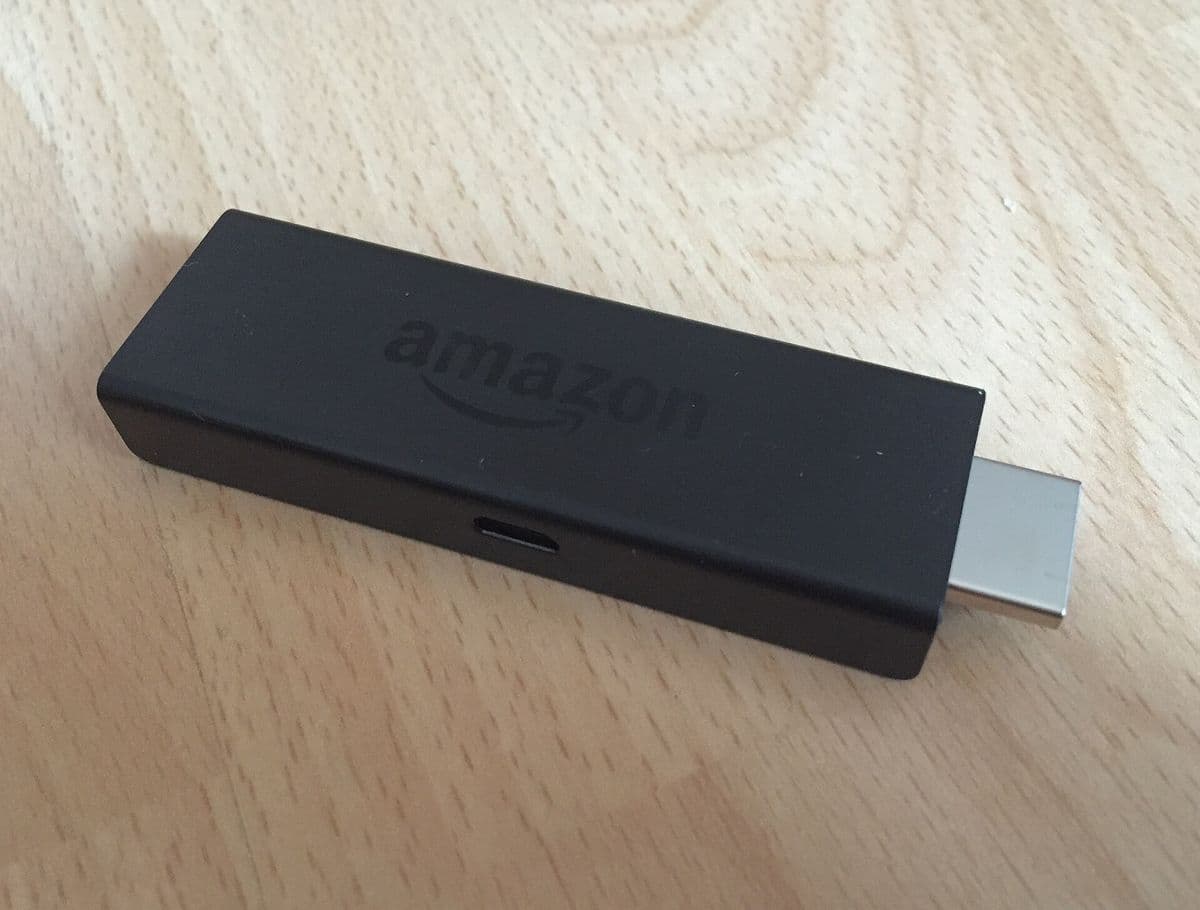
Even a good smart TV may lack a particular app, slow down after a few years or stop receiving updates. A streaming stick or box adds a fresh platform for a modest cost. Many households use the TV's own apps for broadcasters and a stick for IPTV players. Our IP TV box setup guide covers that route.
Questions to ask before buying
- Which platform does the TV use?
- Are my essential apps in its store?
- Does it have Ethernet and support HEVC?
- How long will it receive updates?
- Does it support the HDR formats I need?
Setting up a new smart TV for IPTV
- Connect by Ethernet if possible.
- Run all system updates.
- Install apps from the official store.
- Disable unnecessary picture processing that adds lag.
- Enable match frame rate if available.
Screen size and viewing distance
Bigger is not always better for streaming. Choose a size that suits your room and viewing distance, and remember that lower-bitrate streams can look softer on very large screens. A good 55-inch TV often gives a better everyday experience than a cheaper, larger model with weaker processing.
Sound
Built-in TV speakers are often modest. If sound matters, check for eARC to connect a soundbar easily and confirm the TV passes surround formats from apps. Many streaming services offer surround sound on some content, and live sport benefits from clear commentary.
Remote and voice control
A well-designed remote with dedicated app buttons and voice search makes daily use easier. Check whether the remote supports the voice assistant you prefer and whether the TV supports phone remote apps for typing.
Energy use
Modern TVs vary in energy consumption, especially in bright HDR modes. Check the energy label and consider eco settings for everyday viewing.
Common mistakes
- Buying for picture quality alone and discovering missing apps.
- Choosing a model without Ethernet.
- Ignoring how long updates will last.
- Sideloading apps on platforms that do not support it.
A worked example
A viewer wants a new TV for IPTV and sport. They shortlist models on Google TV and another platform, check that their preferred player is in each store and compare processors, HEVC support and Ethernet. They choose the model with their player available, a wired port and a good update record, and set up the app over Ethernet on day one.
Checklist
- Choose the platform first.
- Confirm essential apps.
- Check codecs, Ethernet and Wi-Fi.
- Check update policy.
- Consider a streaming stick as backup.
Key terms
- Platform: the TV's operating system, such as Google TV or webOS.
- HEVC: an efficient video codec used for 4K.
- eARC: an HDMI feature sending high-quality audio to soundbars.
Monster IPTV
Monster IPTV works with third-party players on many smart TVs and streaming devices. See the supported devices page.
Test in the shop or at home
If possible, try the TV's interface in a shop, or buy from a retailer with a reasonable return policy. Install your essential apps in the first days and check that they run smoothly. Returning a TV that does not suit your apps is easier than adding workarounds for years.
A quick summary for buyers
Platform first, essential apps second, streaming hardware third and update policy fourth. Getting these four right matters more than any single picture feature.
Frequently asked questions
What is a smart IP TV?
A television that connects to the internet and runs streaming and IPTV apps.
Which smart TV platform is best for IPTV?
Platforms with wide app stores, such as Google TV, offer the most players; check your essential apps on others.
Do I need Ethernet on a smart TV?
It is strongly recommended for stable live TV.
How long do smart TVs get updates?
It varies by manufacturer; check before buying.
Is a streaming stick still useful with a smart TV?
Yes, for extra apps or when the TV slows down with age.
Summary
Choosing a smart IP TV starts with the platform and your essential apps, then hardware such as codecs, Ethernet and processor, and the update policy. Set it up over Ethernet, install apps from official stores and keep a streaming stick in mind as a backup.