Searching for IPTV Smarters Pro PC usually means you already use IPTV Smarters Pro on a phone or TV and want the same experience on a Windows laptop, desktop or Mac. There are a few ways to do this, and they are not equal: a desktop edition published by the developer, a web-based player, an Android emulator, or a different desktop player altogether. This guide compares the options, explains how to install safely and lists fixes for the problems people meet most often.
Monster IPTV is not affiliated with the developer of IPTV Smarters. Editions, platforms and download pages change, so always confirm details on the developer's official website or your device's official app store.
Your options at a glance
| Option | How it works | Best for |
|---|---|---|
| Desktop edition | A Windows or macOS app from the developer, where offered | People who want a native app |
| Web player | Runs in a browser, where the developer offers one | Quick access without installing |
| Android emulator | Runs the Android app inside Windows or macOS | Those who want the exact mobile layout |
| Alternative desktop player | VLC or another IPTV player for computers | Simple, reliable playback |
For many users, the simplest route is the official desktop edition if one exists for their system. See IPTV Smarters Lite for Windows for the lighter edition.
Option 1: the desktop edition
Where the developer publishes a desktop version, it is usually the cleanest choice. It runs natively, uses your computer's hardware for decoding and stays updated through the developer or the Microsoft Store or Mac App Store.
To install it:
- Visit the developer's official website, or search the Microsoft Store or Mac App Store.
- Check the publisher name matches the developer of IPTV Smarters Pro on mobile.
- Download and install.
- Open the app and choose a login type.
If you find a "PC version" only on third-party download sites, be cautious. Those pages often bundle adware or offer outdated builds.
Option 2: a web player
Some IPTV apps offer a browser-based player. If one is available, you sign in through the official site and watch in a browser tab. This avoids installation but depends on browser support for the stream formats used, and performance can vary between browsers.
Option 3: an Android emulator
An emulator such as BlueStacks or the Android environment available on some systems lets you run Android apps on a computer. You install IPTV Smarters Pro from the Google Play Store inside the emulator and use it as you would on a phone.
Trade-offs:
- Emulators use more memory and processor time.
- Hardware decoding may not work as well, so playback can stutter on older computers.
- The layout is designed for touch screens and can feel awkward with a mouse.
Option 4: an alternative desktop player
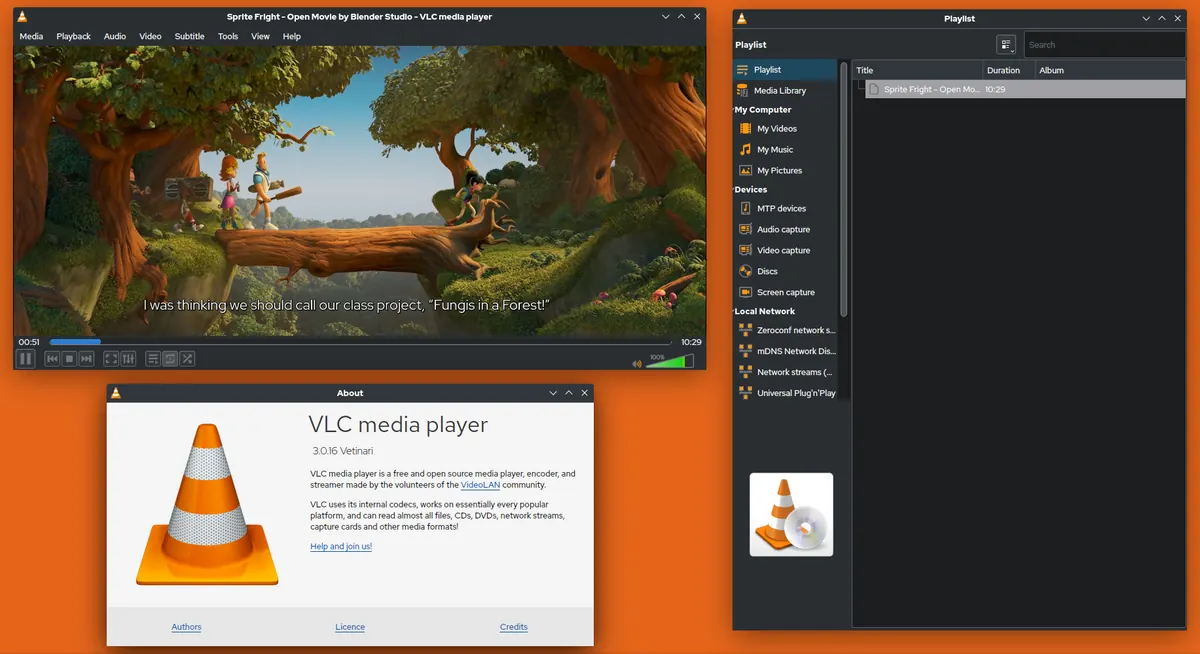
If the Smarters desktop options do not suit you, other players work with the same login details. VLC plays M3U playlists on Windows and Mac and is free. Dedicated desktop IPTV players add a guide, groups and favourites. Our IPTV player for Windows guide compares several.
Setting up your login on a PC
Whichever app you choose, setup follows the same pattern:
- Choose Xtream Codes API login if your provider gave you a server URL, username and password, or M3U if you received a playlist link.
- Enter the server address exactly, including
http://orhttps://and any port number. - Add the programme guide (EPG) link if your provider supplied one separately.
- Wait for channels, films and series to load, then mark favourites.
System requirements to consider
| Factor | Why it matters |
|---|---|
| Processor and graphics | Hardware decoding keeps HD and 4K playback smooth |
| Memory | Large channel lists and emulators use more RAM |
| Network | Wired Ethernet is more stable than Wi-Fi for live TV |
| Display | 4K needs a 4K screen and a fast enough connection |
Older laptops can play HD streams comfortably in a native app but may struggle with an emulator, so test IPTV Smarters Pro PC playback before relying on it.
Common problems and fixes
| Problem | Likely cause | What to try |
|---|---|---|
| App will not install | Blocked by security settings or wrong edition | Use the official store; check system version |
| Login fails | Typo in server URL, username or password | Re-enter details exactly, including the port |
| Video stutters | Weak hardware decoding or Wi-Fi | Use a native app; connect by cable |
| No guide | EPG not loaded | Add or refresh the EPG link |
| Antivirus warning | Unofficial download | Delete it and download from the official source |
If a login works on your phone but not on your PC, the problem is usually local: a firewall, VPN or typing error.
Using a PC with your TV
You can connect a laptop to a TV with an HDMI cable and use IPTV Smarters Pro on PC as a big-screen setup. This works well for occasional viewing, though a dedicated streaming device with a remote is more comfortable for everyday use.
Common mistakes
- Downloading IPTV Smarters Pro PC builds from unofficial sites.
- Running an emulator on a low-powered laptop and blaming the service.
- Using more devices at once than your plan allows.
- Forgetting the port number in the server URL.
A worked example
A viewer wants to watch on a Windows laptop while travelling. They check the Microsoft Store, find no edition that matches the developer, and decide against an emulator because their laptop is several years old. They install VLC for quick playback and a dedicated desktop IPTV player with guide support, enter their login and watch smoothly over the hotel's wired connection.
Checklist
- Check for an official desktop edition first.
- Verify the publisher name.
- Use an emulator only as a fallback.
- Enter login details exactly.
- Prefer a wired connection for live TV.
Monster IPTV on a computer
Monster IPTV works with third-party players on Windows and Mac. Plans cover one to five devices, so a PC can sit alongside your TV and phone within your plan's limit. See the supported devices page or ask support which app suits your computer.
Frequently asked questions
Is there an official IPTV Smarters Pro PC version?
The developer has offered desktop editions on some platforms. Check its website or your system's app store.
Can I run IPTV Smarters Pro on a Mac?
Check the Mac App Store and the developer's site. If no edition is available, an alternative desktop player works with the same login.
Is using an emulator safe?
Well-known emulators from official sources are generally safe, but they use more resources and may play less smoothly.
Why does my PC stream stutter when my TV doesn't?
Your PC may be on Wi-Fi or lack efficient hardware decoding. Try a cable and a native app.
Does a PC count as a device on my plan?
Yes. Each device playing at the same time counts toward your simultaneous connection limit.
Summary
Getting IPTV Smarters Pro on PC means choosing between an official desktop edition, a web player, an emulator or an alternative player. Start with the official edition, verify the publisher, use emulators only when needed and enter your login exactly. A wired connection and a native app give the smoothest results.