People searching IPTV IP usually want to understand the numbers and addresses that appear in their setup: server addresses with IP numbers and ports, their device's local IP address, DNS settings and messages about IP blocks. These details matter when logins fail or streams will not connect. This guide explains each in plain language and shows how to fix common network-level problems.
IP addresses you will meet
| Address | Where you see it | What it means |
|---|---|---|
| Server address | Login details, e.g. http://203.0.113.10:8080 | Where the service's server is |
| Public IP | Shown by "what is my IP" sites | Your home's address on the internet |
| Local IP | Device network settings, e.g. 192.168.1.20 | Your device's address inside your home |
| DNS server | Router or device settings | Turns names into IP addresses |
Why login details include IPs and ports
Xtream-style logins often use a server address that is either a domain name or a numeric IP address, followed by a port number after a colon. The port tells your app which "door" on the server to use. Leaving out the port, or typing the IP incorrectly, is a common reason logins fail. Our guide to Xtream IPTV logins explains the full format.
Local IP addresses and when to fix them
Your router gives each device a local IP address automatically. For most viewers, this is fine. You might want a fixed (static) local IP or a DHCP reservation when:
- You use parental controls or traffic rules tied to a device.
- You manage an encoder or set-top box through its address.
- You troubleshoot and want a device to keep the same address.
Set reservations in your router's settings rather than on the device where possible.
DNS: names to numbers
DNS translates server names into IP addresses. If DNS is slow or misconfigured, apps may struggle to find servers. Some households use alternative DNS services for speed or filtering. If a provider's server name stops resolving, it may have changed or been blocked; ask your provider.
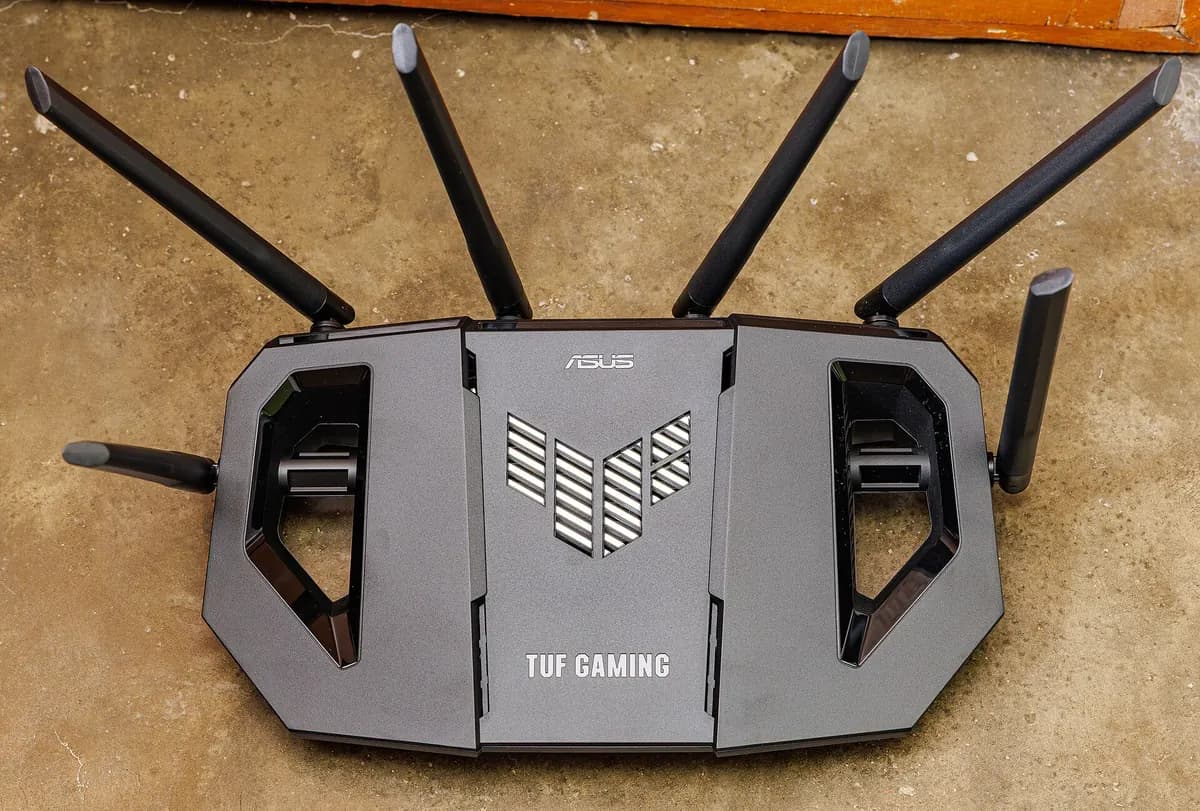
Common network-level problems
| Symptom | Possible IP-related cause | What to try |
|---|---|---|
| Login fails on Wi-Fi but works on mobile data | Home network or ISP blocking the server | Ask your provider; check router security settings |
| "Cannot resolve host" | DNS problem or changed server name | Restart router; check details with provider |
| Works on one device, not another | Device-specific settings or VPN | Remove VPN or custom DNS to test |
| Connection refused | Wrong port or server down | Check the port; contact the provider |
| Stops after router reboot | Device got a new local IP affecting rules | Use a DHCP reservation |
VPNs and IP addresses
A VPN changes your public IP to one belonging to the VPN server. Some providers block VPN addresses, which can cause login errors. Test with the VPN off. Our guide to the best VPN for IPTV covers the trade-offs.
Too many connections
Some services count connections per account, and may track them by IP. Using more devices than your plan allows, or sharing your login elsewhere, can trigger errors. Stay within your plan's simultaneous device limit.
Security basics
- Change your router's admin password.
- Keep router firmware updated.
- Avoid opening ports on your router unless you know why.
- Never share your login details, which include your server address.
How to find your local IP address
Knowing where to look saves time during troubleshooting:
- Android TV and Google TV: Settings, then Network and Internet, then your connected network.
- Fire TV: Settings, then My Fire TV, then About, then Network.
- Smart TVs: usually under Network settings or Network status; menu names vary by brand.
- Phones: in the Wi-Fi settings, tap the connected network for details.
- Computers: in network settings, or with a command such as
ipconfigon Windows.
Your router's admin page also lists connected devices with their local addresses, which helps when you want to create a DHCP reservation.
IPv4 and IPv6
Most IPTV login details use IPv4 addresses, the familiar four numbers separated by dots. Some networks also use IPv6, which looks like longer groups of letters and numbers separated by colons. Your router and device usually handle both automatically. If a login works on one network and not another, IPv6 is rarely the cause, but some troubleshooting guides suggest testing with IPv6 disabled on the router as a last resort.
Double NAT and mesh systems
If you add a second router or a mesh system behind your internet provider's router, devices may sit behind two layers of address translation, called double NAT. Ordinary streaming usually still works, but parental controls and device rules can become confusing. Setting the provider's router to bridge mode, or the mesh system to access-point mode, keeps one clear network.
A worked example
A viewer's IPTV login works on mobile data but fails on home Wi-Fi with "cannot connect". The router's security filter is blocking the server's address. After checking with the provider that the address is correct, the viewer adjusts the filter and the login works on Wi-Fi.
Checklist
- Enter server IPs and ports exactly.
- Know your device's local IP for troubleshooting.
- Use DHCP reservations when needed.
- Test without VPN or custom DNS.
- Keep router settings secure.
Key terms
- Port: a number identifying a service on a server.
- DHCP reservation: a router setting that always gives a device the same local IP.
- DNS: the system that converts names into IP addresses.
Monster IPTV
Monster IPTV support sends login details in the right format for your player and can help when connections fail. Include your device, app and error message; see the contact page.
Frequently asked questions
What is an IPTV IP address?
Usually the server address in your login details, sometimes written as a number with a port, such as 203.0.113.10:8080.
Why does my login need a port number?
The port tells your app which service on the server to connect to. Leaving it out often causes errors.
Should I give my TV a static IP?
Not usually. A DHCP reservation in your router is simpler if you need a fixed address.
Can my internet provider block IPTV servers?
Some networks block certain servers. Test on another network and ask your provider.
Does a VPN change my IPTV IP?
It changes your public IP, which some services block.
Summary
IPTV IP details include server addresses with ports, your public and local IPs and DNS. Enter server details exactly, use DHCP reservations when needed, test without VPNs or custom DNS and keep your router secure. Our failed to authorize guide covers login errors in depth.