IPTV GSE Smart IPTV is a long-running player app available on Apple and Android platforms. Our GSE Smart IPTV setup guide covers installation and first login. This article goes further: managing several playlists, handling guide sources, organising favourites and backing up your settings so you do not have to start again after a reinstall or a new device.
Monster IPTV is not affiliated with the developer. Menu names and features vary by platform and version, so use the app's own help pages for exact steps.
Managing several playlists
Many users have more than one source: a subscription, a public playlist, perhaps a local file. Players like GSE typically let you store several.
| Tip | Why it helps |
|---|---|
| Name each playlist clearly | Easy to tell which is which on a TV screen |
| Keep inactive playlists disabled or removed | Faster start-up and less clutter |
| Use the login type your service recommends | Xtream logins often load films and series separately |
| Test new playlists on a phone first | Saves time on slower TV devices |
Remember that each active stream counts toward your service's device limit, even if it comes from the same app.
Handling guide (EPG) sources
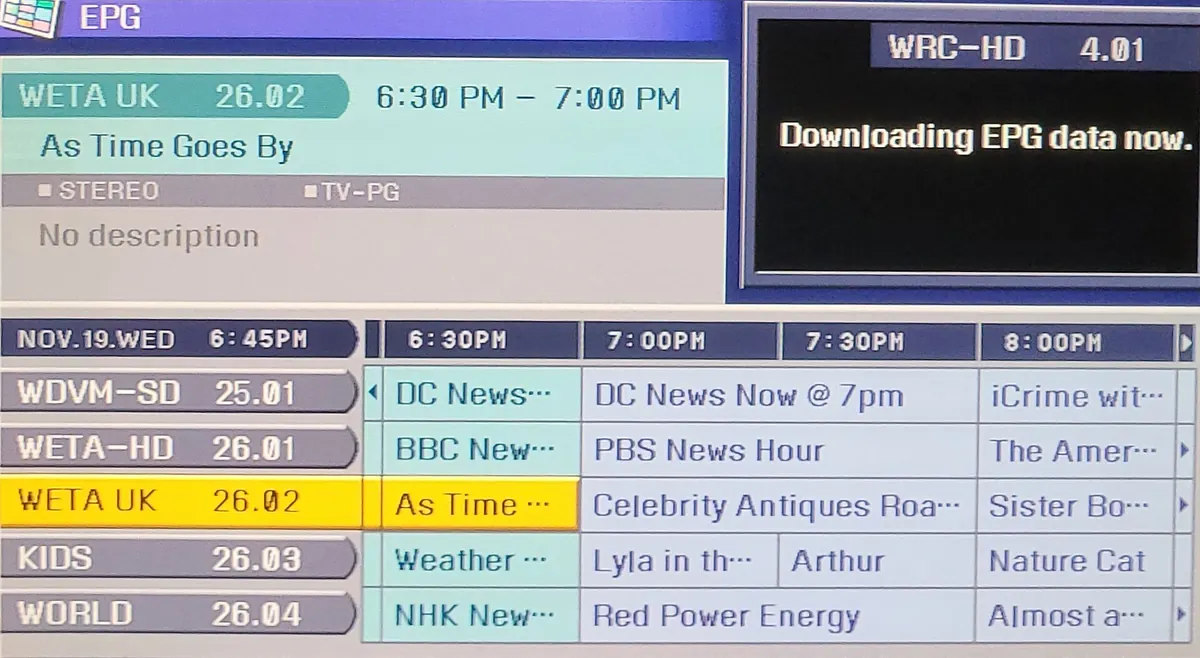
Guide data usually comes from an XMLTV link, either provided by your service or bundled into an Xtream login.
- Add the guide link in the app's EPG section.
- Assign it to the right playlist if the app asks.
- Refresh the guide and wait for it to load.
- Set an automatic refresh interval if available.
- Check the time offset if programmes appear at the wrong times.
If some channels show no guide, the IDs in your playlist may not match the guide file. Our IPTV editor guide explains how guide IDs work.
Organising favourites and groups
- Add daily channels to favourites so they appear first.
- Hide groups you never watch.
- Use search for occasional channels rather than scrolling.
- On Apple TV, keep favourites short to reduce remote scrolling.
Backing up settings
Rebuilding playlists, guides and favourites by hand is tedious. Where the app offers a backup or export feature:
- Create a backup after setting everything up.
- Store it somewhere safe, such as your own cloud storage.
- Remember the backup may contain your login details; keep it private.
- Restore it on a new device or after reinstalling.
If no backup feature is available on your platform, keep a private note of your playlist links, guide links and favourites.
Keeping the app fast
- Remove unused playlists and guides.
- Avoid loading very large public lists on Apple TV or older devices.
- Clear the app's cache if it becomes sluggish.
- Keep the app and device updated.
Using GSE across devices
If you use the app on an iPhone, iPad and Apple TV, set up one device fully, back it up and restore the backup on the others, then adjust favourites per device. This saves time and keeps playlists consistent.
Troubleshooting management issues
| Problem | What to try |
|---|---|
| Guide times wrong | Check device time zone and guide offset |
| Guide empty after refresh | Check the link; try a manual refresh |
| Favourites lost after update | Restore from backup |
| Playlist slow to load | Remove unused playlists; use smaller lists |
| Login errors | Check details with your provider |
Parental controls and privacy
Where the app offers a parental PIN, use it to lock categories that are not suitable for children, and combine it with device-level restrictions on Apple TV or Android. Also review which apps can access your local network or storage. Backups and exported files may contain your login details, so store them in private locations rather than shared folders.
When to rebuild from scratch
If the app becomes unstable even after clearing its cache, export what you can, remove the app, reinstall it and restore only what you need: your active playlist, guide link and favourites. Starting fresh often clears problems caused by old playlists or corrupted guide data. Leave out playlists you no longer use rather than restoring them.
Common mistakes
- Leaving old playlists active.
- Sharing a backup file that contains login details.
- Ignoring the guide time offset.
- Rebuilding everything by hand instead of using backups.
A worked example
A user with IPTV GSE Smart IPTV on an iPhone and an Apple TV sets up their subscription login, adds the guide link, creates a favourites list of twelve channels and makes a backup. When they replace their Apple TV, they install the app, restore the backup and are watching within minutes.
Checklist
- Name and tidy playlists.
- Add, assign and refresh guide sources.
- Organise favourites and hide unused groups.
- Back up settings privately.
- Keep the app updated and lean.
Key terms
- XMLTV: a common programme guide file format.
- Guide offset: a setting that shifts guide times by whole hours.
- Backup: a saved copy of app settings for restoring later.
Using GSE with Monster IPTV
Monster IPTV works with third-party players including GSE Smart IPTV. Support can provide details in the format your app needs; see the supported devices page.
Getting help with IPTV GSE Smart IPTV
When asking for help, mention your device, app version, login type and the exact error. Never post your playlist link, server address or password publicly, and blur them in screenshots.
Frequently asked questions
Can IPTV GSE Smart IPTV store several playlists?
Typically yes. Name each clearly and remove ones you no longer use.
How do I fix wrong guide times?
Check your device time zone and the app's guide offset setting.
Does a backup include my login?
It may. Keep backup files private.
Why is the app slow on Apple TV?
Large playlists and guides use more resources. Use smaller lists and remove unused ones.
Is GSE affiliated with Monster IPTV?
No. Monster IPTV has no affiliation with the developer.
Summary
Getting more from IPTV GSE Smart IPTV means managing playlists and guide sources carefully, organising favourites, backing up settings privately and keeping the app lean. Those habits keep it fast and save time when you change devices.