Many services advertise IPTV 4K channels. Some genuinely stream Ultra HD from 4K sources; others label HD channels as 4K, upscale HD before sending it, or offer only a handful of real 4K events. Because a label costs nothing, it is worth knowing how to check. This guide shows how to verify a provider's 4K claims on your own TV.
For the equipment and bandwidth you need for 4K in general, see our 4K IPTV guide.
Why 4K labels can mislead
| Situation | What you actually get |
|---|---|
| True 4K source | 3840 × 2160, often with HDR |
| HD upscaled at the source | 4K resolution, but HD detail |
| HD labelled "4K" | 1080p or lower |
| 4K only for some events | A "4K channel" that is HD most of the time |
Upscaled video has the pixel count of 4K but not the detail, so it looks soft compared with genuine Ultra HD.
Step 1: confirm your setup can show 4K
Before judging a provider, rule out your own equipment:
- A 4K TV, ideally with HDR.
- A device that outputs 2160p and decodes HEVC in hardware.
- The device connected to a 4K-capable HDMI input with enhanced or UHD mode enabled.
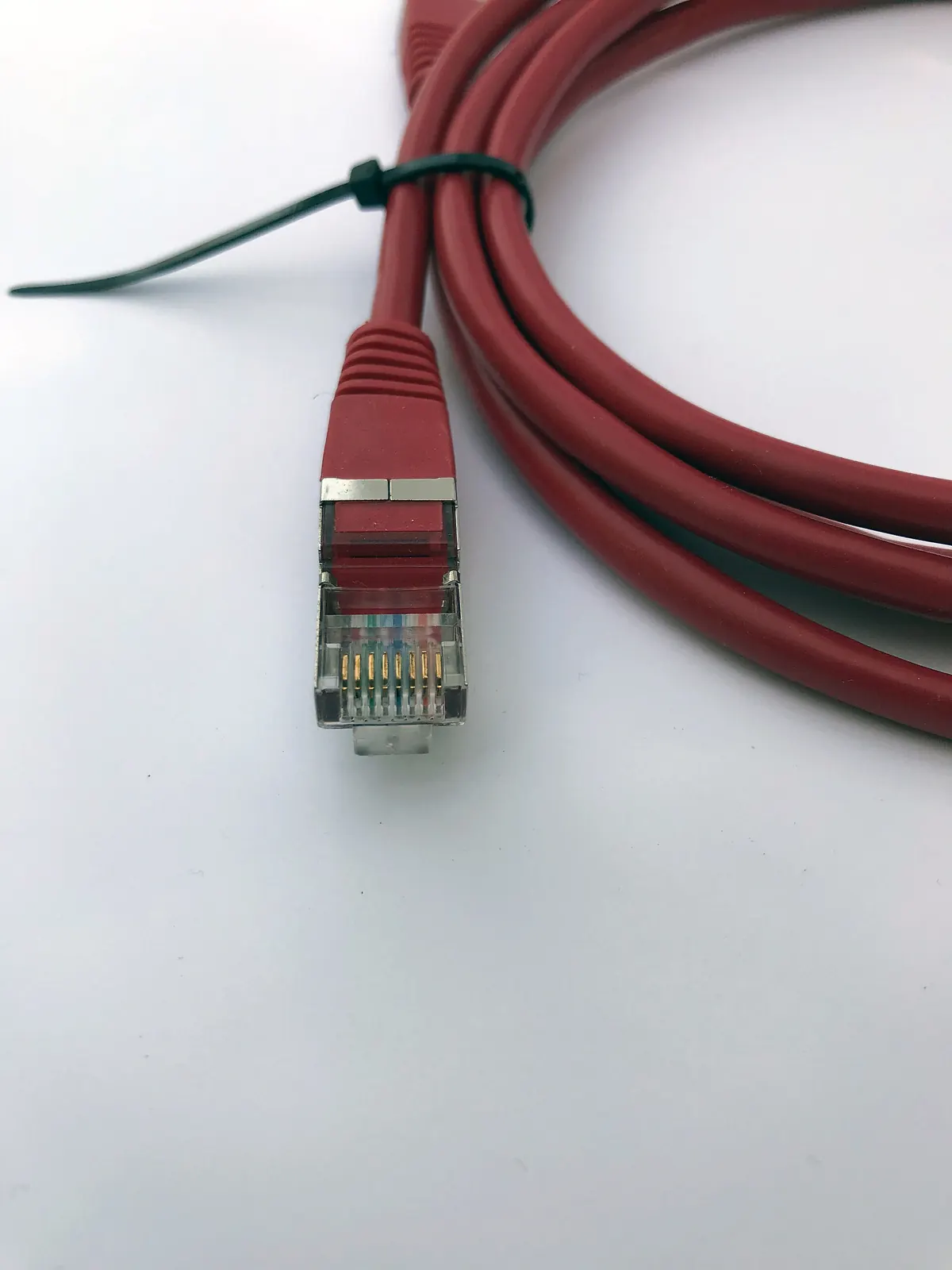
- A stable connection, preferably Ethernet.
If any link in this chain is HD-only, you will never see real 4K.
Step 2: read stream information
Many players can show what the stream actually is:
| Field | What to look for |
|---|---|
| Resolution | 3840 × 2160 for UHD |
| Codec | Usually HEVC or AV1 for 4K |
| Bitrate | Typically much higher than HD streams |
| HDR | HDR10 or HLG if the content uses it |
Players such as TiviMate, VLC and Kodi can display stream details. Our article on the IPTV stream explains these fields.
Step 3: look at the picture
Resolution numbers can be deceptive with upscaled content. Look closely at:
- Fine text such as scoreboards and captions.
- Textures like grass, hair, fabric and brickwork.
- Distant faces in crowd shots.
Genuine 4K looks crisp at close range; upscaled HD looks smooth but soft.
Step 4: check consistency
Watch the "4K" channel at different times. If it is only Ultra HD during special events, that is worth knowing. Also check whether quality drops at peak times, which may indicate the stream adapts down when demand rises.
Step 5: ask the provider directly
- Which channels are native 4K, and when?
- Which codec and HDR format do they use?
- Which devices do you recommend for 4K?
Clear, specific answers are a good sign; vague promises of "all channels in 4K" are not.
Common mistakes
- Judging 4K on a phone or HD TV.
- Using an older stick that outputs only 1080p.
- Leaving the TV's HDMI input in standard mode.
- Testing over weak Wi-Fi and blaming the provider.
Is IPTV 4K worth paying extra for?
Only if genuine 4K content you care about is available and your setup can show it. For many viewers, a stable, well-encoded HD stream looks nearly as good on a typical living-room TV.
A worked example
A viewer trials a service advertising 4K sport. Their player's stream info shows 1920 × 1080 on the "4K" channel during a regular match, rising to 3840 × 2160 only for a special event. Scoreboard text is noticeably sharper during the event. The viewer concludes 4K is occasional and decides based on HD quality instead.
Checklist
- Confirm your TV, device, HDMI and network support 4K.
- Read stream information.
- Inspect fine detail.
- Check consistency over time.
- Ask the provider specific questions.
Key terms
- Upscaling: enlarging lower-resolution video to a higher pixel count.
- Native 4K: content produced and delivered in Ultra HD.
- HDR: high dynamic range, wider brightness and colour.
Monster IPTV and 4K
Monster IPTV does not promise 4K on any specific channel. Picture quality varies by channel, so use the free trial to check the content you care about on your own TV. See how it works.
Comparing two providers' 4K
If you are choosing between services that both advertise 4K, test the same type of content on the same TV, device and connection. Note resolution from stream info, how sharp fine detail looks and whether quality holds at peak times. A provider whose occasional 4K is stable may be more useful than one whose constant "4K" label hides upscaled or unstable streams.
HDR settings that hide the truth
Incorrect HDR settings can make genuine 4K look worse than HD. If colours look washed out or the picture is too dark, check that the TV's HDMI input is in enhanced mode, that the device's dynamic range matching is on and that the TV's picture mode suits HDR content. Fixing these settings sometimes reveals that the stream was fine all along.
Data usage
Genuine 4K streams use far more data than HD. If your broadband has a data cap, watch usage after a few 4K events.
When HD is the smarter choice
On smaller TVs, at normal viewing distances or on unstable connections, a high-quality HD stream may look almost identical and play more reliably. Choose 4K for large screens and content where detail matters.
Keeping notes during the test
Write down the channel, time, resolution shown and your impression of detail. A few notes make it easy to compare later.
Frequently asked questions
How do I know if an IPTV 4K channel is real?
Read the stream information for resolution and codec, and inspect fine detail on a 4K TV.
Why does my 4K channel look soft?
It may be upscaled HD, or your connection may force the player to a lower quality level.
Do all 4K streams use HDR?
No. Some are 4K without HDR. Stream information usually shows which.
Can I watch IPTV 4K on Wi-Fi?
Yes, if Wi-Fi is strong and stable, but Ethernet is more reliable.
Is upscaled 4K useless?
Not useless, but it lacks the detail of native 4K. Many TVs upscale HD well themselves.
Summary
IPTV 4K claims are easy to make. Confirm your setup supports 4K, read stream information, inspect fine detail, check consistency and ask the provider precise questions before paying extra for Ultra HD.