4K IPTV promises four times the pixels of Full HD: sharper sport, more detailed nature documentaries and films that look closer to a cinema projection. Getting it is not just a matter of choosing a service that lists 4K channels. Every link in the chain, from the source and codec to your device, TV and home network, has to support Ultra HD.
This guide explains what you need for 4K IPTV, how much bandwidth to plan for, and how to check whether you are really watching 4K or an upscaled picture.
What 4K actually means
4K, or Ultra HD (UHD), usually refers to a resolution of 3840 × 2160 pixels. That is four times the pixel count of Full HD (1920 × 1080). On a large TV viewed from a normal distance, the extra detail is most visible in fine textures, text and fast-moving sport.
Resolution is only part of the story. Many 4K streams also use HDR (high dynamic range), which widens the range between dark and bright parts of the image, and a wider colour range. Common HDR formats include HDR10, HLG (often used in broadcast) and Dolby Vision.
The five requirements for 4K IPTV
| Requirement | What to check |
|---|---|
| A real 4K source | The channel or film must be produced and streamed in 4K |
| A 4K-capable device | Stick, box, TV app or computer that outputs 2160p |
| Codec support | Hardware decoding of HEVC (H.265), and ideally AV1 |
| A 4K display | A 4K TV, ideally with HDR support |
| Stable bandwidth | Enough consistent speed for the stream, every time |
1. A real 4K source
Most live channels are still broadcast in HD. 4K content tends to be limited to selected sport, special events and on-demand films and series. A channel labelled "4K" may sometimes be HD upscaled at the source, so be realistic about how much genuine 4K is available on any service.
2. A 4K-capable streaming device
Your TV's built-in apps, a 4K streaming stick or an Android TV box can all handle 4K if they are designed for it. Older or entry-level sticks often top out at 1080p. Our guide to IPTV boxes explains what to look for in hardware.
3. Codec support
4K streams are almost always compressed with HEVC (H.265) because it needs roughly half the bitrate of H.264 for similar quality. Some newer services use AV1. Your device must decode these in hardware; software decoding of 4K usually stutters.
4. A 4K display and the right connection
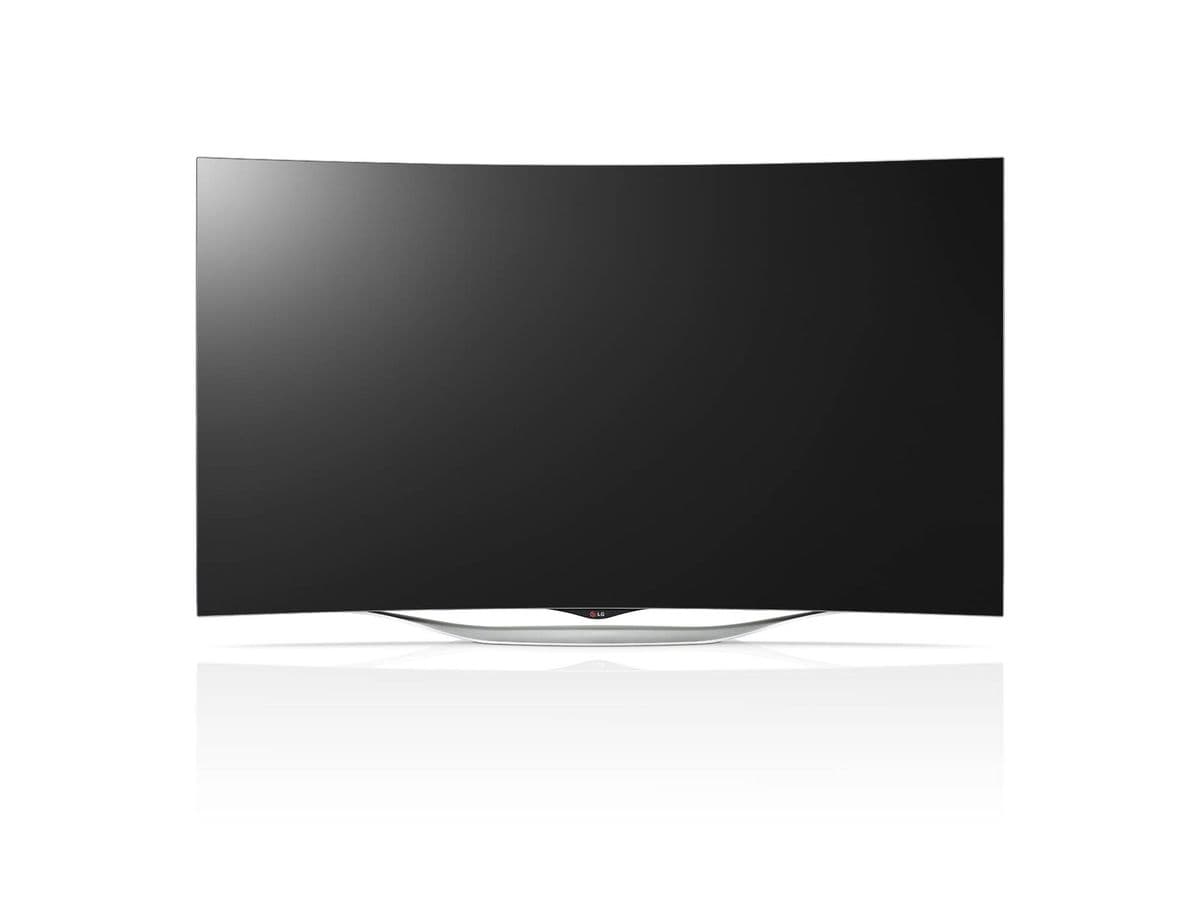
Connect the streaming device to a 4K-capable HDMI input on your TV. On some TVs, enhanced HDMI or "UHD colour" settings must be switched on for each input before 4K HDR works. Use an HDMI cable rated for the bandwidth, especially for HDR at higher frame rates.
5. Stable bandwidth
There is no single figure for 4K IPTV, because it depends on the codec and the service's encoding. As a reference point, major streaming platforms commonly recommend somewhere around 15 to 25 Mbps for 4K. Stability matters as much as speed: if your connection dips during a live match, adaptive streaming will drop to a lower resolution.
Every other device streaming at the same time takes its own share of bandwidth, so a household watching 4K on one TV and HD on two others needs considerably more headroom.
How to check you are really getting 4K
- Check your device's output. Most streaming devices show the current resolution and HDR mode in their display settings.
- Use your TV's info button. Many TVs display the incoming signal, such as 3840 × 2160 and HDR10.
- Check the player app. Some apps, such as TiviMate, can show stream information including resolution and codec.
- Look at fine detail. Real 4K shows crisp text, hair and grass. Upscaled HD looks softer up close.
Common reasons 4K does not work
- The device only supports 1080p output.
- The TV's HDMI input is not set to its enhanced or UHD mode.
- The device cannot decode HEVC or AV1 in hardware.
- Wi-Fi is too weak or congested, so the stream drops to a lower quality.
- The channel is not actually broadcast in 4K.
Our guide to IPTV streaming quality covers network fixes in detail.
Is 4K IPTV worth it?
For viewers with a large 4K TV, a capable device and a strong wired connection, the difference can be striking, especially for sport and nature content. On smaller TVs, at longer viewing distances or on unstable Wi-Fi, a good HD stream may look almost as good and play more reliably.
Monster IPTV and 4K
Picture quality on Monster IPTV varies by channel, and we do not promise 4K on any specific channel. If Ultra HD matters to you, request the free trial and test the content you care about on your own TV and connection. See how the trial works and our supported devices.
Frequently asked questions
Does 4K IPTV need a special TV?
You need a 4K (UHD) TV to see the extra resolution. For HDR content, the TV must also support the HDR format used, such as HDR10, HLG or Dolby Vision.
Can I watch 4K IPTV over Wi-Fi?
Yes, if the Wi-Fi is strong and stable. A wired Ethernet connection is more reliable for 4K, especially during busy evenings or with several devices streaming.
Why does my 4K stream keep dropping to HD?
Usually because adaptive streaming is reacting to dips in your connection. Improve Wi-Fi coverage, use Ethernet, or reduce other heavy downloads while watching.
Is HEVC required for 4K IPTV?
Almost always. Most 4K streams use HEVC (H.265), and some use AV1. Your device needs hardware support for the codec to play 4K smoothly.
Does 4K use more data?
Yes, considerably more than HD. If your broadband plan has a data cap, keep an eye on usage after watching a few 4K events.
Final thoughts
4K IPTV is achievable when the source, codec, device, TV and network all support it. Check each link in the chain, verify the resolution you are actually receiving, and test on your own setup before paying extra for Ultra HD.