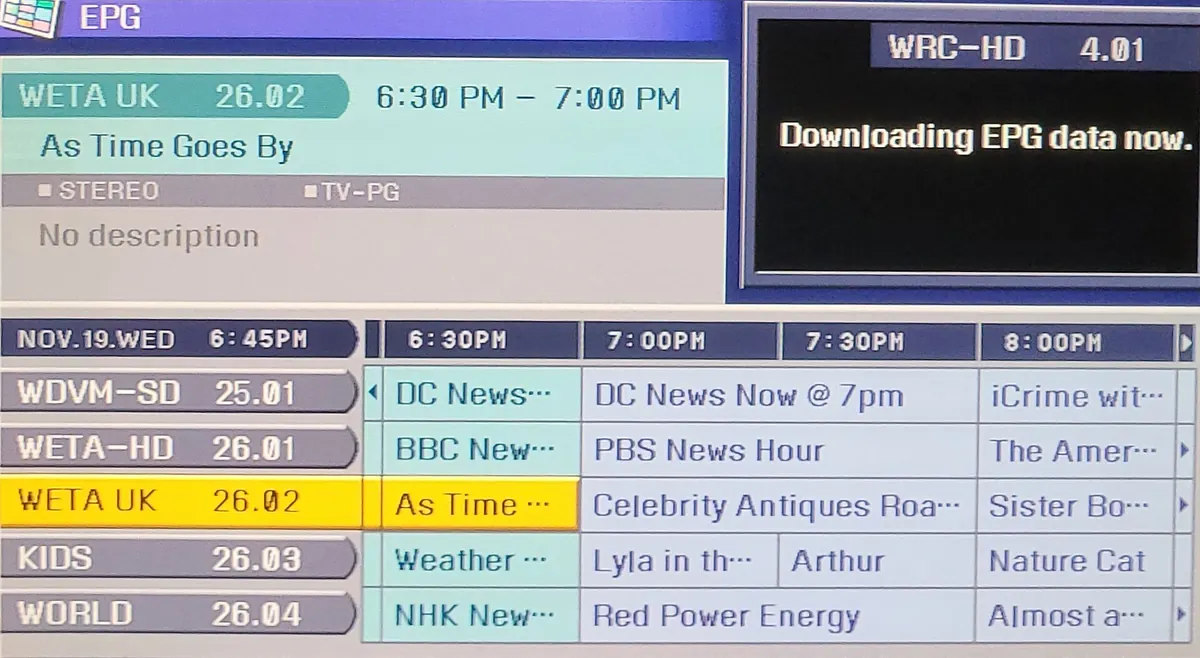
Many people who search for IP Smarters mean the IPTV Smarters family of player apps, and one of the most common questions is about the programme guide. A working electronic programme guide (EPG) turns a long channel list into a proper TV experience, showing what's on now and next. When it's empty or wrong, the app feels broken even if channels play fine. Monster IPTV is not affiliated with the Smarters developer.
This guide explains how the EPG works in Smarters apps and how to fix the most common guide problems. For general settings, see Smarters IPTV settings.
How the guide gets into the app
| Login type | Where guide data usually comes from |
|---|---|
| Xtream Codes | Usually provided automatically by the service |
| M3U playlist | Often a separate EPG link (XMLTV) that you add |
The guide is a file of listings matched to channels by an identifier. If the identifiers don't match, the channel shows "No information".
Loading and refreshing the guide
- Open the app's settings or the guide section.
- For M3U logins, add the EPG link provided by your service.
- Choose to load or refresh the EPG.
- Wait; large guides can take a few minutes.
- Reopen the guide and check a few channels.
Refresh the guide after the service updates its channel list, and if listings run out after a few days.
Common guide problems
| Problem | Likely cause | Fix |
|---|---|---|
| Guide completely empty | Not loaded or no EPG link | Load or add the EPG link |
| Some channels show no listings | Channel IDs don't match the guide | Ask the service; some channels have no guide data |
| Listings stop after a few days | Guide not refreshed | Refresh, or enable automatic updates |
| Guide loads very slowly | Large guide on a slow device | Wait, use Ethernet, or try a faster device |
| Listings shifted by an hour | Time zone or offset setting | Check the device clock and the app's time offset |
Time zones and offsets
Guide data is stored in a reference time. The app converts it using your device's time zone. If the device clock or time zone is wrong, every listing shifts. Set the device to automatic date and time first. Some Smarters versions also have an EPG time offset setting; use it only if listings are consistently off after the device time is correct.
Channels without guide data
Not every channel has listings. Some services don't provide guide data for certain channels, such as regional or event channels. In that case the channel plays normally but shows no information. Ask your service which channels have guide data before assuming something is wrong.
Performance tips
- Large guides use memory; older TV sticks may be slow to load them.
- Use Ethernet so the guide downloads quickly.
- Avoid refreshing during live viewing; do it when the TV is idle.
- Clear the app cache if the guide behaves oddly after updates.
Catch-up and the guide
On services that support catch-up, past programmes in the guide may be playable. The guide must match the archive for this to work. If catch-up programmes don't play, refresh the guide and check that the channel supports catch-up.
Making the guide easier to use
Once the guide works, a few settings make it more pleasant on a TV:
- Open the guide from your favourites list rather than the full list, so it shows only the channels you watch.
- Use the compact or grid view, whichever is easier to read from the sofa.
- Set reminders for programmes, if your version supports them.
- Hide categories you never watch so the guide loads faster.
When to contact your service
Contact your service if the guide stays empty after loading, if many channels lack listings or if listings are consistently wrong for specific channels. Include your device, app version, login type and a few example channels. Guide data comes from the service, so they are the ones who can fix mismatched identifiers.
Common mistakes
- Expecting M3U logins to load a guide without an EPG link.
- Ignoring the device's time zone.
- Using the time offset to fix a wrong device clock.
- Assuming every channel should have listings.
A worked example
A user on a Fire TV Stick sees an empty guide after switching to an M3U login. They add the EPG link their service provided, refresh the guide on Ethernet and wait three minutes. Listings appear, but one hour early, so they set the device to automatic time zone and the guide lines up.
Checklist
- Know your login type.
- Add the EPG link for M3U logins.
- Refresh the guide regularly.
- Check the device time zone.
- Ask the service about channels without data.
Key terms
- EPG: electronic programme guide.
- XMLTV: a common file format for guide data.
- Time offset: a setting that shifts all listings by a set amount.
About Monster IPTV
Monster IPTV works with Smarters apps and other players. If guide listings are missing, contact support with your device, app and login type. See contact.
Guide data and privacy
Guide links and playlist links often contain your login details. Don't share them in forums or screenshots.
Quick reset routine
If the guide misbehaves after an app update, clear the app cache, reload the playlist, then refresh the EPG. This simple routine solves many guide problems without reinstalling the app.
Frequently asked questions
What does IP Smarters usually refer to?
Usually the IPTV Smarters family of player apps.
Why is the guide empty in my Smarters app?
It may not be loaded, or an M3U login may need a separate EPG link.
Why do some channels show no information?
Their IDs may not match the guide, or the service has no data for them.
How often should I refresh the guide?
After channel list changes and whenever listings run out, or set automatic updates.
Should I use the EPG time offset?
Only after confirming the device's date, time and time zone are correct.
Summary
In IP Smarters apps, the guide comes from your service or a separate EPG link. Load and refresh it, check the device time zone, and ask your service about channels without data.