GSE IPTV, short for GSE Smart IPTV, is a long-running player on Apple and Android devices. Our GSE Smart IPTV setup guide covers installation, and our guide to managing GSE playlists and guides covers organisation. This article focuses on troubleshooting: common errors, likely causes and fixes.
Monster IPTV is not affiliated with the developer. Menus vary by platform and version, so use the app's help pages alongside this guide.
A troubleshooting order
- Network: do other apps work? Try Ethernet.
- Login or link: does it work in another app, such as VLC?
- App: restart, update, clear cache.
- Guide: is an EPG source added and refreshed?
- Device: restart; check storage.
Working in order avoids changing several things at once.
Common problems and fixes
| Problem | Likely cause | Fix |
|---|---|---|
| Playlist will not load | Wrong link or expired account | Test the link in VLC; check with provider |
| Xtream login fails | Typo, missing port, wrong capitals | Re-enter details exactly |
| Guide empty | No EPG source or mismatched IDs | Add EPG link; refresh |
| Guide times wrong | Time zone or offset | Check device time zone; adjust offset |
| Buffering | Weak Wi-Fi or busy network | Ethernet; pause downloads |
| App crashes | Old version or full cache | Update; clear cache; reinstall |
| Some channels fail | Those streams are offline | Try later; report to provider |
Testing outside GSE
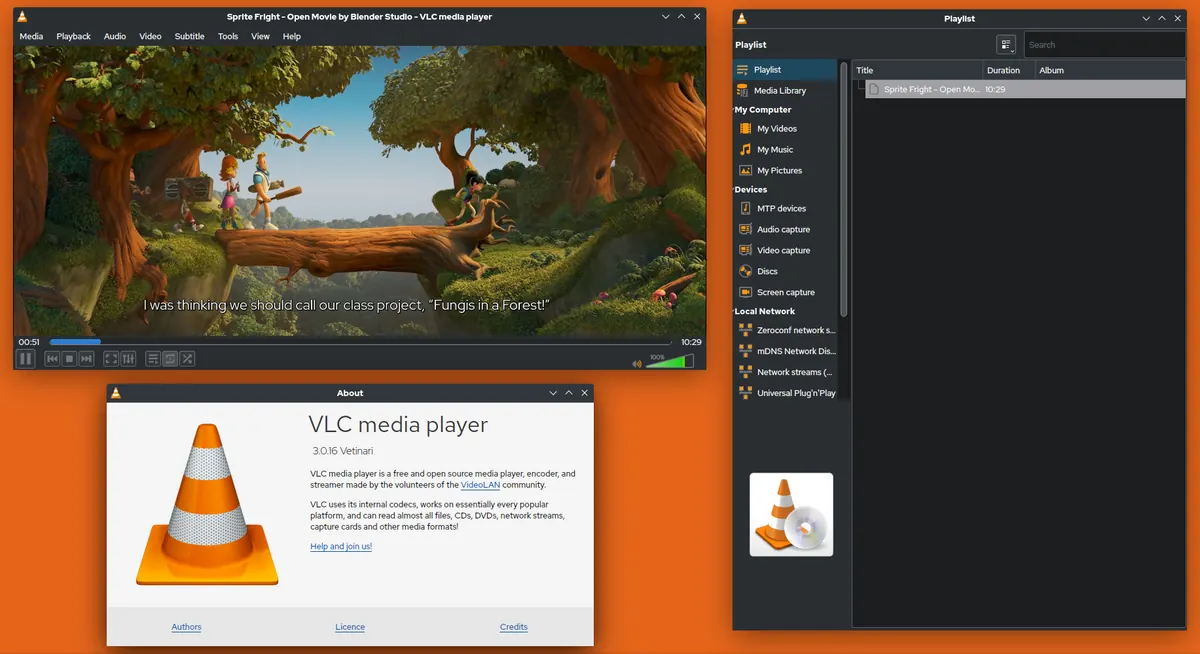
Open your playlist link in VLC on a computer, or try your Xtream login in another player. If it fails everywhere, the issue is your link or account. If it works elsewhere, focus on GSE settings.
Player engine and decoding
GSE offers player options on many platforms. If a channel stutters, try a different player engine or toggle hardware decoding. Change one setting at a time and test.
Large playlists
Very large playlists can slow GSE on Apple TV and older devices. Use smaller, grouped lists, hide unused groups and remove inactive playlists.
After updates
App or system updates occasionally change behaviour. After an update, check your playlists load and your guide refreshes. If problems start after an update, clear the cache or reinstall, then restore from a backup if you made one.
When to contact support
- Contact your service provider if the login or playlist fails in every app.
- Contact the app developer through official channels if GSE misbehaves while other apps work.
Include device, app version, error message and time. Our IPTV test toolkit helps you gather the facts.
Platform-specific tips
iPhone and iPad: close and reopen the app after changing playlists; check that background app refresh is enabled if the guide does not update.
Apple TV: keep playlists small; enable Match Frame Rate in the Apple TV video settings for smoother sport.
Android phones and TV boxes: check app permissions and battery optimisation, which can stop background guide updates; clear the cache if the app slows down.
Backups before big changes
Before reinstalling or making major changes, export your playlists and settings if GSE offers a backup on your platform. Store the backup privately, because it may contain your login. Restoring takes minutes instead of rebuilding everything by hand.
Keeping a fault log
Write down when problems happen, which channels and what the screen showed. Patterns, such as buffering only in the evening or failures on one channel group, point to the cause and make support conversations faster.
Common mistakes
- Reinstalling before checking the login.
- Ignoring guide time offset.
- Loading huge lists on Apple TV.
- Changing several settings at once.
A worked example
A viewer's GSE IPTV guide shows programmes an hour out. They check the iPad's time zone, find it correct, then adjust the guide offset by one hour and refresh. The guide now matches the channels.
Checklist
- Check network.
- Test login elsewhere.
- Update and clear cache.
- Add and refresh the guide.
- Contact the right support.
Key terms
- EPG offset: a setting that shifts guide times.
- Cache: stored data that can become stale.
- Player engine: the component that plays video.
Using GSE with Monster IPTV
Monster IPTV logins and playlist links work with GSE Smart IPTV. Support can help diagnose problems; see the supported devices page.
When the problem is the service
If your link fails in every app, all channels buffer on Ethernet in the evening, or your account shows as expired, the issue is with your service rather than GSE IPTV. Contact your provider with the test results you collected. If the same link works smoothly in VLC and another player but not in GSE, the problem is in the app or its settings, and the developer's official help pages are the right place to look.
Preventing problems
Keep the app updated, use smaller grouped playlists, refresh the guide regularly and save your settings in a private backup.
Network quick fixes
Restart the router, move closer to it or use Ethernet, and pause other heavy downloads. Many apparent app problems disappear once the network is stable. If you use a VPN, test without it, as some services block VPN addresses and this can look like an app fault.
Device health
Free up storage, close background apps and restart the device occasionally. On Android, check that battery optimisation is not stopping GSE from refreshing the guide in the background.
Quick recap
Network, login, app, guide, device: check and fix them in that order, one change at a time.
Frequently asked questions
Why won't my GSE IPTV playlist load?
The link may be wrong or expired; test it in VLC and check with your provider.
Why does my Xtream login fail in GSE?
Usually a typo, missing port or wrong capitals.
Why is the guide empty?
No EPG source is added, or channel IDs do not match.
Why does GSE buffer?
Often Wi-Fi or network load; try Ethernet.
Does Monster IPTV make or support the GSE app?
No. Monster IPTV has no affiliation with the developer.
Summary
Troubleshoot GSE IPTV in order: network, login, app, guide and device. Test your login outside GSE, tune player settings one at a time and contact the right support with clear details.