The IPTV Smarters player is the playback engine inside the IPTV Smarters apps. Most people never open its settings, but when a channel stutters, shows sound without picture or appears stretched, those settings are often the quickest fix. Knowing what each option does saves a lot of guesswork.
This guide explains the main playback settings typically found in IPTV Smarters apps, what they change and how to use them to solve common problems. Menu names and options vary between versions and platforms, and Monster IPTV is not affiliated with the developer.
Internal versus external players
Smarters apps generally let you choose how streams are played:
| Option | What it means | When to use it |
|---|---|---|
| Built-in player | Smarters' own playback engine | Default for most devices |
| Alternative built-in engine | A second internal engine, where offered | If the default stutters or fails |
| External player | Hands the stream to another app, such as VLC | Difficult streams or formats |
If a channel will not play, switching the player option is one of the first things to try.
Decoder modes
Video can be decoded in two ways:
- Hardware decoding uses the device's video chip. It is efficient and usually smoother.
- Software decoding uses the main processor. It can handle unusual formats but is heavier and may stutter on low-powered devices.
If you see sound but no picture, or a green or frozen image, try switching between hardware and software decoding.
Buffer settings
Some versions let you adjust buffering:
- Larger buffer: fewer interruptions on unstable connections, but longer start times and more delay behind live.
- Smaller buffer: quicker channel starts and less delay, but more sensitivity to network dips.
Start with the default; increase the buffer only if you see frequent short pauses.
Aspect ratio and picture fit
If the picture looks stretched or has black bars, check the aspect ratio option. Choices often include fit, fill, 16:9 and original. "Original" or "fit" usually shows the picture correctly; "fill" may crop edges.
Audio and subtitle tracks
Some streams include several audio languages or subtitle tracks. During playback, open the track menu to switch. If audio is missing, try another track or switch the decoder mode.
Common problems and player fixes
| Problem | First fix | Second fix |
|---|---|---|
| Sound but no picture | Switch decoder mode | Try another player option |
| Stutter on one channel | Try the alternative engine | Increase buffer slightly |
| Picture stretched | Change aspect ratio | Check TV picture settings |
| Long delay behind live | Reduce buffer | Use Ethernet |
| No audio | Change audio track | Switch decoder mode |
If problems affect every channel, check your network first; see our IPTV streaming guide.
When it is not the player
Player settings cannot fix an expired account, a wrong server address or weak Wi-Fi. If login fails, see our guide to the IPTV Smarters failed to authorize error.
Common mistakes
- Changing several settings at once, so you cannot tell what helped.
- Setting a very large buffer and then complaining about delay.
- Blaming the player when the whole network is struggling.
- Forgetting that settings may differ between your TV and phone apps.
A worked example
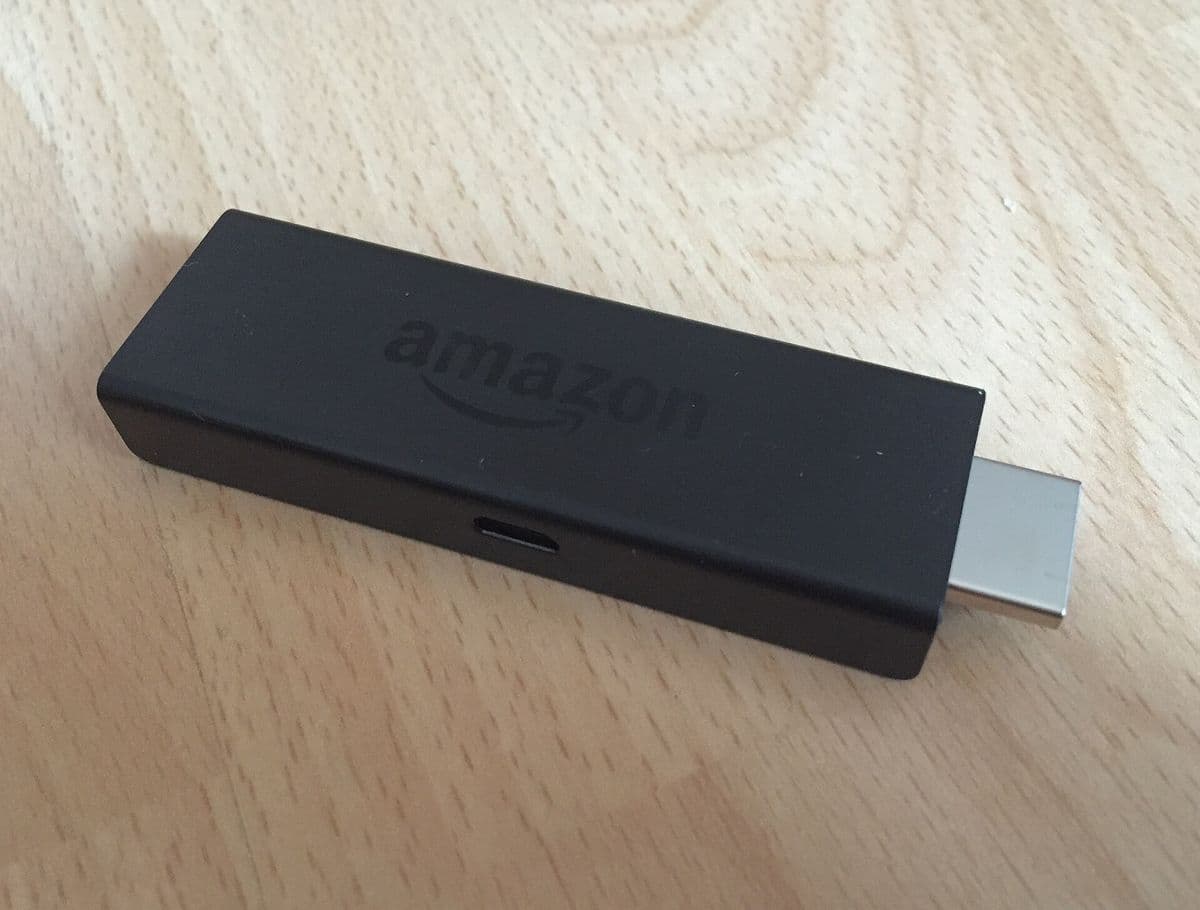
On a Fire TV Stick, one sports channel shows a frozen picture with sound while others work. Switching from hardware to software decoding fixes it, but other channels then stutter. Choosing the external player option for that channel only, using VLC, gives smooth playback everywhere.
Checklist
- Try another player option.
- Switch decoder mode.
- Adjust buffer in small steps.
- Check aspect ratio and tracks.
- Rule out network problems.
Key terms
- Hardware decoding: decoding video on the device's video chip.
- Buffer: video downloaded ahead of playback.
- External player: another app that plays streams handed over by Smarters.
Using the IPTV Smarters player with Monster IPTV
Monster IPTV works with players such as IPTV Smarters. If a channel misbehaves, tell support your device, app, the player setting you are using and the channel name. See our IPTV Smarters Pro guide and the contact page.
Settings that affect picture quality
Besides playback engines, check the app's quality or stream format options if your version offers them. Some services provide streams in more than one format, and choosing a different one can improve compatibility on particular devices. On TVs, also check the TV's own picture settings: motion smoothing, sharpness and dynamic contrast can make a good stream look worse.
Device-specific tips
- Fire TV: if one decoder setting causes stutter on many channels, try the alternative engine before switching to software decoding.
- Android phones: battery-saving modes can limit performance; disable them while watching.
- iPhone and iPad: use the latest app version from the App Store, as playback engines improve over time.
- Windows and Mac: update graphics drivers, because hardware decoding depends on them.
Resetting to defaults
If you have changed many settings and playback is worse, reset the player settings to their defaults where the app allows it, then change one option at a time. Note which setting fixes each problem so you can repeat it later.
Keeping a note of what works
Write down the player, decoder and buffer combination that works best on each device. It saves time after reinstalls and helps support if you need to ask for help.
Frequently asked questions
What is the IPTV Smarters player?
The playback engine inside IPTV Smarters apps, with settings for decoder, buffer, picture and tracks.
Should I use the internal or an external player?
Start with the internal player. Switch to an external player such as VLC if specific streams fail.
Why is there sound but no picture?
Usually a decoder issue. Switch between hardware and software decoding.
Does increasing the buffer stop buffering?
It can reduce short pauses on unstable connections, at the cost of longer start times and more delay.
Are the settings the same on every device?
Not always. Versions differ between platforms, so options may vary.
Summary
The IPTV Smarters player's settings, player choice, decoder mode, buffer, aspect ratio and tracks, solve many playback problems. Change one setting at a time, rule out the network and account first, and use an external player for stubborn streams.