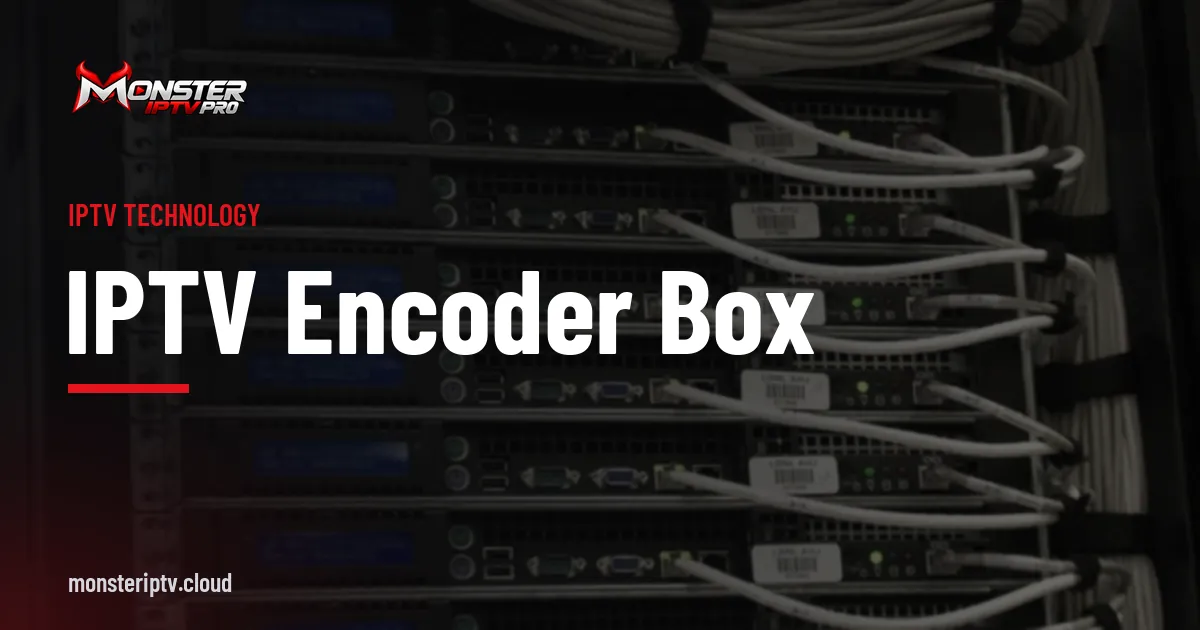
An IPTV encoder box is a compact, standalone device that converts one or a few video sources into IP streams without needing a computer. Small enough to sit on a shelf, behind a display or inside an AV cabinet, these boxes are popular for classrooms, churches, small venues, signage and live streaming.
This guide explains what is inside an encoder box, typical uses, power and network options, setup, limitations and how to choose one.
What an IPTV encoder box contains
| Component | Role |
|---|---|
| Video input (HDMI or SDI) | Receives the source |
| Encoding chip | Compresses video, usually H.264 or H.265 |
| Audio input | Embedded HDMI/SDI audio, sometimes analogue line-in |
| Ethernet port | Sends streams to the network |
| Web interface | Configuration and monitoring |
| Power input or PoE | Powers the box |
Because the encoding happens in dedicated hardware, the box runs quietly and reliably, often around the clock.
Typical uses
- Classrooms: stream a presenter's laptop to other rooms or remote students.
- Houses of worship: send services to overflow rooms and online.
- Small venues and bars: show a stage or event camera on several screens.
- Digital signage: distribute a signage player's output.
- Live streaming: send a camera or mixer output to online platforms.
Encoder box versus computer-based encoding
| Factor | Encoder box | Computer with capture card |
|---|---|---|
| Reliability | High, purpose-built | Depends on the computer |
| Setup | Web interface | Software configuration |
| Flexibility | Fixed features | Very flexible |
| Power and noise | Low | Higher |
| Cost | Moderate | Low if you own a PC |
Power and PoE
Many encoder boxes accept Power over Ethernet, so one cable carries data and power. Check the box's power class and that your switch supplies it. Otherwise, use the supplied adapter with surge protection.
Setting up an IPTV encoder box
- Connect the source and the network.
- Find the box's address and open its web interface.
- Set a fixed IP address and change the admin password.
- Choose codec, resolution, bitrate and audio.
- Configure outputs: multicast for local screens, RTMP or SRT for online.
- Test the stream in VLC, then on receivers.
Our step-by-step guide on how to convert HDMI to IPTV explains each setting.
Limitations
- Usually one to four channels; larger systems need rack units.
- Fixed codec support; H.265 or 4K may require a newer model.
- HDCP-protected sources cannot be captured.
- Small boxes can overheat if enclosed without ventilation.
Choosing an IPTV encoder box
| Question | Why it matters |
|---|---|
| Which input? | HDMI for consumer sources, SDI for professional |
| Which outputs? | Multicast, RTMP, SRT, HLS as needed |
| H.264 or H.265? | Compatibility versus efficiency |
| Audio needs? | Analogue input for separate mixers |
| PoE? | Simplifies installation |
| Management? | Web UI, API, firmware updates |
For a wider comparison, see our HDMI IPTV encoder guide.
Common mistakes
- Putting the box in a closed cabinet without airflow.
- Leaving default passwords unchanged.
- Choosing H.265 when receivers only decode H.264.
- Forgetting to set a fixed IP address.
A worked example
A church buys a compact HDMI encoder box powered by PoE. It sits beside the vision mixer, sends multicast to an overflow room TV and RTMP to a streaming platform. After a firmware update and a fixed IP address, it runs every Sunday without attention.
Checklist
- Match inputs and outputs to your project.
- Confirm codec and audio needs.
- Use PoE or protected power.
- Secure and configure the web interface.
- Test in VLC and on receivers.
Key terms
- Standalone encoder: encodes without a computer.
- PoE: Power over Ethernet.
- Multicast: one stream shared by many receivers.
Where to place the box
Place the encoder close to the source to keep HDMI or SDI cables short, or near the network switch if the source is close by. Avoid sealed cabinets and the tops of hot equipment. Wall or under-desk brackets keep the box secure and away from spills. Label it with its name and IP address so anyone can identify it quickly.
Network considerations
For a few screens on a small network, unicast or RTSP may be simpler than multicast. For many screens, use multicast with IGMP snooping on your switches so traffic only reaches devices that request it. If you stream online, check that your internet upload speed comfortably exceeds the stream's bitrate.
Keeping it secure
Change default passwords, update firmware, restrict management access to trusted computers and never expose the web interface directly to the internet. Encoder boxes are network devices and deserve the same care as routers or cameras.
Monitoring
Many boxes show a preview thumbnail and status information. Check them before important events, and consider remote monitoring if the box runs unattended.
When to upgrade
Upgrade when you need more channels, 4K, H.265 or protocols your current box lacks. Choosing a model with regular firmware updates extends its useful life.
Planning for a backup
For important events, keep a second way to stream ready: a spare encoder box with a saved configuration, or a laptop with a capture card and streaming software. Test the backup before the event so switching takes seconds rather than minutes.
Training the people who use it
Show volunteers or staff how to check the box's status page, restart it and confirm the stream in VLC. A one-page guide taped near the equipment prevents panic when something goes wrong during a live event.
Frequently asked questions
What does an IPTV encoder box do?
It converts video from HDMI or SDI sources into IP streams for local screens or online platforms.
Do I need a computer with an encoder box?
Only to configure it through a web browser; it encodes on its own.
Can an encoder box stream to YouTube?
Many can, using RTMP or SRT outputs.
How many channels can a box handle?
Usually one to four, depending on the model.
Will it capture my cable or satellite box?
Usually not, because those sources use HDCP protection.
Summary
An IPTV encoder box is a compact, reliable way to stream one or a few sources. Choose inputs, outputs, codec and power to match your project, configure it securely, keep it ventilated and test before going live.