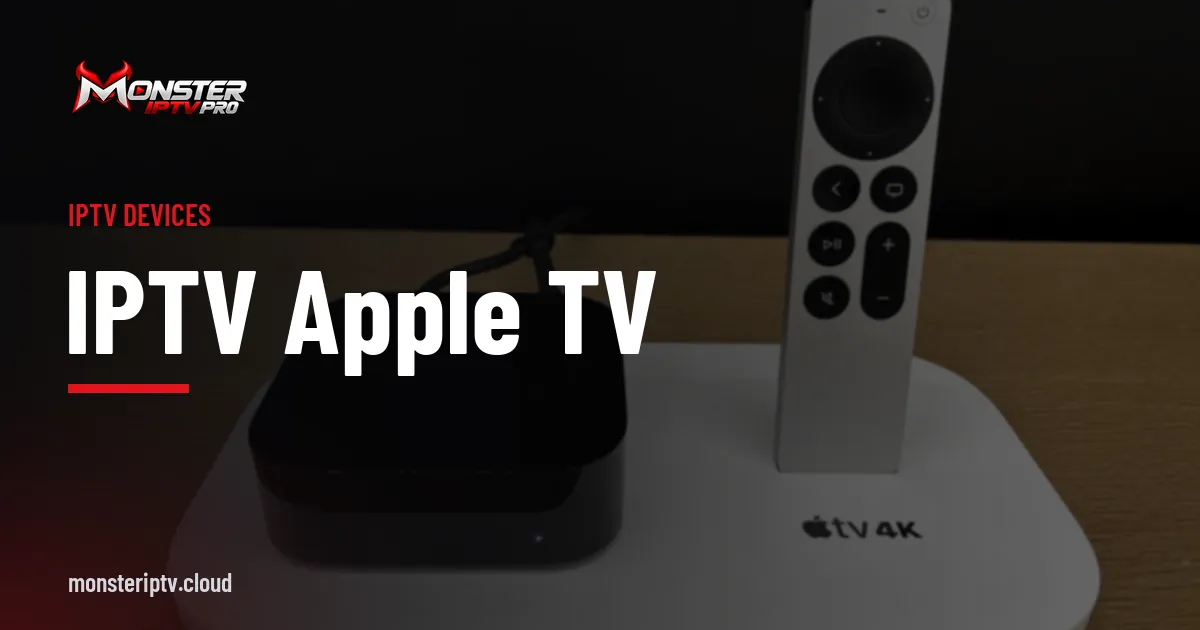
Apple TV is a popular streaming device, but its app store is different from Android TV or Fire TV, and some well-known IPTV players are not available on it. Choosing the best IPTV app for Apple TV means looking at the players that are available on tvOS and judging them on what matters with the Siri Remote: navigation, guide layout, playback and sync across Apple devices.
Monster IPTV is not affiliated with any developer, and the App Store changes, so check current listings. For general Apple TV setup, see our IPTV Apple TV guide.
Common players on Apple TV
| Player | Commonly known for |
|---|---|
| GSE Smart IPTV | Long-running player across Apple devices |
| iPlayTV | TV-style interface designed for Apple TV |
| IPTV Smarters | Xtream login support on Apple platforms |
| VLC | Free playback of links and files |
| Other App Store players | Various interfaces; check reviews and updates |
Some popular Android TV players, such as TiviMate, are not available on Apple TV. Our GSE Smart IPTV guide covers that app in detail.
What matters on Apple TV
- Siri Remote navigation: smooth swiping through channels and guides.
- Guide layout: a readable grid or list from the sofa.
- Login types: Xtream, M3U or both.
- iCloud sync: some apps sync playlists and favourites across iPhone, iPad and Apple TV.
- Playback engine: smooth sport, correct frame rate, audio options.
- Pricing: one-time purchase, subscription or free with limits.
Apple TV settings that help
- Enable Match Content: Frame Rate and Dynamic Range in Settings > Video and Audio.
- Connect the Apple TV by Ethernet if your model has a port.
- Keep tvOS and apps updated.

How to choose
- Shortlist two players with good recent reviews.
- Check they support your login type.
- Try free versions or trials with your login.
- Watch an evening of TV including sport.
- Keep the one with the clearest guide and smoothest playback.
Paying for apps
Many Apple TV players are paid or offer in-app upgrades. Pay only through the App Store, and check whether a purchase covers iPhone and iPad as well.
Common problems
| Problem | Try |
|---|---|
| Judder on sport | Enable Match Frame Rate |
| Guide empty | Add or refresh the EPG link |
| Login fails | Check server URL, port and capitals |
| App feels slow | Reduce playlist size; hide unused groups |
Apple TV models and performance
Newer Apple TV 4K models have faster processors, more memory and better Wi-Fi, which helps with large playlists and smooth 4K playback. Older Apple TV HD models can struggle with very large channel lists or HEVC streams. If your Apple TV is several generations old, keep playlists small or consider upgrading. Models with an Ethernet port give the most stable connection for live sport.
Audio and video formats
Check whether the player supports the audio formats your service uses and passes surround sound correctly to a soundbar. Enable Match Dynamic Range only if your TV supports HDR. If colours look washed out, review the video settings on both the Apple TV and the TV.
Using the same app on iPhone and iPad
Many Apple TV players also exist on iPhone and iPad. A single purchase may cover all devices, and iCloud sync can carry playlists and favourites between them. This is convenient for watching on the go, but remember that each device playing at the same time counts toward your service's device limit.
AirPlay as a fallback
If your preferred player is not on Apple TV but runs on iPhone, AirPlay can send video to the TV. A native Apple TV app is usually smoother and keeps your phone free.
Common mistakes
- Expecting Android-only players on Apple TV.
- Ignoring Match Frame Rate settings.
- Paying for an app before testing.
- Using Wi-Fi when Ethernet is available.
A worked example
A viewer with an Apple TV 4K shortlists two players from the App Store, adds their Xtream login to both and watches a match in each. One handles frame rate better and has a clearer guide, so they buy it, enable iCloud sync and use the same app on their iPad.
Checklist
- Shortlist tvOS players.
- Confirm login support.
- Enable Match Frame Rate.
- Test with your login.
- Pay only through the App Store.
Key terms
- tvOS: Apple TV's operating system.
- Match Frame Rate: setting that switches the TV to the content's frame rate.
- iCloud sync: sharing settings across Apple devices.
Monster IPTV on Apple TV
Monster IPTV works with third-party players on Apple TV that accept Xtream logins or M3U links. See the supported devices page.
Parental controls on Apple TV
Apple TV has system-level restrictions for purchases, app installs and content ratings under Settings > General > Restrictions. Combine these with any PIN lock in your IPTV player for children's profiles. Some players also support separate playlists or profiles, which helps keep children's channels separate.
Keeping the Home screen tidy
Move your chosen player to the top row so it appears first, and remove apps you no longer use. A tidy Home screen makes daily viewing quicker for everyone.
When to switch apps
If your current player stops receiving updates or misbehaves after a tvOS update, try another listed app with the same login. Your subscription stays with your service, so switching only costs a few minutes.
Frequently asked questions
What is the best IPTV app for Apple TV?
It depends on your preferences; GSE Smart IPTV, iPlayTV and others are common choices. Test two with your login.
Is TiviMate available on Apple TV?
No, it is an Android-based app.
Why does sport judder on Apple TV?
Enable Match Content: Frame Rate in the video settings.
Do Apple TV players sync with iPhone?
Some offer iCloud sync; check the app's features.
Are Apple TV IPTV apps free?
Some are free with limits; many are paid or offer upgrades.
Summary
The best IPTV app for Apple TV is one available on tvOS that suits the Siri Remote, supports your login, shows a clear guide and plays smoothly. Enable Match Frame Rate, test two apps and pay only through the App Store.